



How to Prevent LCD Screen Burn-In | Static Duration, Brightness Control, Regular Switching
Preventing LCD burn-in involves three key strategies:
first, controlling static image duration.
Experiments show that displaying the same image for over 2 hours easily leads to image persistence;
it is recommended to switch content or turn off the screen every 30 minutes (e.g., set auto-sleep for 15-30 minutes).
Second is brightness management, as high brightness accelerates aging. Reducing brightness from 100% to 70% can extend lifespan by approximately 30%;
maintain 50%-70% for daily use, and temporarily adjust to 80% in strong outdoor light.
Third is regular content switching. In office settings, change window layouts every hour; for TVs, play 1-2 minutes of dynamic video during standby;
professional monitors should perform daily pixel refreshing (full-screen RGB scanning).

Static Image Duration
Tests by DisplayMate Labs (USA) show that the pixel aging rate increases by 300% after a static image persists for 20 minutes;
A report from TÜV Germany indicates that 83% of burn-in complaints stem from ignoring this time limit.
For daily use, a single instance should be controlled within 20-30 minutes.
High-risk scenarios (such as airport screens or game pauses) require shorter intervals, as exceeding the limit accumulates irreversible damage.
Risk Time
Public Information Screens
Electronic screens in public spaces (airports, malls, transit hubs) operate for over 12 hours daily on average.
A 2019 study by the Rochester Institute of Technology (USA) titled "Public Display Panel Aging Research" pointed out that for every 5 minutes a static image is extended on a public screen, the decay rate of local backlight LED phosphors increases by 20%.
When static for over 15 minutes, the bonding force between pixel electrodes and the liquid crystal layer drops, making visible gray spots likely within 6 months.
Hartsfield-Jackson Atlanta International Airport (USA), 2022:
A gate screen used a Delta Air Lines LOGO as a static wallpaper for 14 hours a day.
After 7 months, a 2cm² faint gray patch appeared in the upper right LOGO area.
Repair required replacing the entire backlight module (costing 45% of a new screen, according to the airport IT department report).
Munich Shopping Center (Germany), 2023:
A single Christmas promotion advertisement was looped for 90 minutes per cycle.
After 3 months, the image persistence depth at the bottom "SALE" text reached 15nit (normal area brightness was 250nit), forcing early retirement of the screen.
Commercial screens (such as the Samsung C series) use industrial-grade LED backlights, so their threshold is slightly higher than home screens (15 minutes vs. 12 minutes), but they still require 3 seconds of dynamic content (like weather icons) to be inserted every 10 minutes.
Gaming and Video Pauses
Testing by the French gaming community "JeuxVideo.com":
At 1080P resolution, after the "CS:GO" crosshair (white cross, 80nit brightness) remained static for 2 hours, the light transmittance of the corresponding pixels decreased by 12%;
After 3 hours, the persistent image required the screen to be off for 48 hours just to fade by 50%.
Netflix user report (USA):
Pausing the "Stranger Things" intro (red "N" letter, 120nit brightness) for 4 hours caused a faint red mark in the left 1/4 of the screen, which turned into permanent burn-in after 6 months.
Game HUDs mostly consist of high-contrast elements (e.g., black background + white text), and film/TV LOGOs often contain solid color blocks.
Both force liquid crystal molecules into extreme long-term deflection (0° or 90°), which ages pixels 2x faster than natural images (gradient colors).
Therefore, 10 minutes is the safety red line.
If exceeded, enable the device's built-in "Auto Sleep on Pause" (e.g., Razer X27 monitor defaults to 8 minutes).
Office Scenarios
Meeting Share Screens
PPT title bars and Excel headers (including company LOGOs) should be displayed statically for ≤15 minutes.
IT logs from SAP Berlin (Germany) in 2023 showed that a Sharp PN-K321B monitor in their meeting room developed header text persistence (20nit brightness difference) after an Excel header remained for 25 minutes during quarterly reports just 3 times.
Personal Focus Screens
Word toolbars and Photoshop layer panels should be ≤20 minutes.
Adobe user survey (USA):
Designers often keep tool panels static; 22% experienced slight whitening at panel icon locations (requiring software calibration to fix) due to 3 hours of continuous editing.
The Dell U2723QE monitor features a built-in "Office Mode" that automatically reduces the brightness of non-editing areas by 10% after detecting a static Excel/Word interface for 15 minutes;
Microsoft Surface Hub meeting screens default to switching the shared content layout every 12 minutes to avoid overexposure in a single area.
Live Sports
Sky Sports (UK) 2023 Euro Cup broadcast:
The "Sky Sports" LOGO in the bottom right (static, 70nit brightness) was displayed for 90 minutes per match.
By the end of the season (3 months), a 0.5cm gray spot appeared in that area, with repair costs reaching 800 GBP (according to an Ofcom regulatory report).
Applebee's Restaurant Chain (USA):
Brand LOGOs at the top of tabletop menu screens were displayed statically for 20 minutes per cycle.
After 18 months, 12% of the screens showed LOGO burn-in, forcing an upgrade to dynamic rotating menus.
Automotive and Outdoor Screens
Insurance Institute for Highway Safety (IIHS, USA) 2022 test:
In a 40℃ environment, after a static navigation arrow (60nit brightness) persisted for 8 minutes on a vehicle screen, pixel response delay increased by 5ms (normal ≤2ms), and edge blurring appeared after 15 minutes.
Outdoor advertising screens in Sydney, Australia (operated by JCDecaux):
A static beer advertisement played during a summer noon (ambient temperature 38℃).
After 6 hours, the persistence depth at the LOGO reached 30nit, far exceeding the 15nit threshold for indoor screens.
The Tesla Model 3 center screen automatically switches to a 3D map view after a navigation route remains static for 6 minutes;
Outdoor screen manufacturers (e.g., LG Outdoor series) mandate a refresh of static content positions every 5 minutes (pixel shifting + content rotation).
Daily Home Use
Consumer Reports (USA) tracked 100 home TVs in 2023 and found that families where channel logos were displayed statically for a cumulative total of over 2 hours daily (15 minutes × 8 times) were 4 times more likely to experience burn-in within 3 years than occasional viewers.
The Sony BRAVIA "Home Screen Saver" feature automatically switches to dynamic wallpapers (e.g., flowing underwater scenes) after detecting the Android TV interface (including static app icons) is still for 20 minutes;
Samsung The Frame TV's Art Mode rotates an artwork every 30 minutes to avoid a single static display.
Timeout Prevention
Pixel Shifting
DisplayMate Labs (USA) 2023 tests show that after enabling this feature, the performance degradation rate of pixel electrode materials under static images is reduced by 40%, and the aging rate drops from 0.8% per hour to 0.48%.
Examples and Parameters of Western Devices:
-
Samsung QLED TV (QN900C Series): Supports 0.5 pixel/minute horizontal + vertical dual-direction shifting. It activates automatically after detecting static content (like a channel logo) for 5 minutes, with a shift range of ±2 pixels (to avoid visual detection).
-
Dell Ultrasharp U3223QE Monitor: A professional design model with 0.3 pixel shifting precision. It cycles the shift direction every 8 minutes (Top-Left → Bottom-Right → Top-Right → Bottom-Left), suitable for fine static content like CAD drawings.
-
Sony BRAVIA A95L OLED: Equipped with "Pixel Shift Pro," which uses AI to identify static areas (like a game HUD) and applies 0.2 pixel micro-shifts only to that area, minimizing interference with the dynamic picture.
How to Enable:
-
Samsung TV path: Settings → General → Screen Saver → Pixel Shift (On by default); Dell Monitor: Dell Display Manager software → Image → Pixel Offset (manual adjustment); Sony TV: Settings → Display → Screen Saver → Advanced Pixel Shift (Select "Standard" or "Enhanced").
In 2024, TÜV Germany tested 10 Samsung TVs with pixel shifting enabled.
After 72 hours of continuous static logo display, the persistence brightness difference was only 5nit (compared to 25nit on disabled devices), and the screen-off time required to return to normal brightness was shortened by 60% (from 24 hours to 9.6 hours).
Screensavers and Screen-Off
The "Dynamic Screensavers" in Apple macOS Sonoma use GPU-rendered low-frame-rate animations (1-2fps).
Power consumption is 5% higher than a traditional black screen but 30% lower than a high-brightness static image (Apple 2023 Energy Efficiency Report).
System-level Features (Mainstream Western OS):
-
Windows 11: Settings → Personalization → Lock Screen → Screen Saver. Options include "Photo Gallery" (randomly switches local images at 1-60 minute intervals) and "3D Text" (dynamically rotating low-brightness text). Defaults to starting after 10 minutes of inactivity.
-
macOS Ventura/Sonoma: Desktop & Screen Saver → Dynamic Screensavers (e.g., "Cosmos," "Watercolor"). Supports "Random" mode, changing every 5-30 minutes, with brightness automatically matching ambient light (via True Tone sensors).
-
Android TV (Google TV): Settings → Device Preferences → Screen Saver. Built-in "Art Gallery" (rotates famous paintings every 15 minutes) and "Clock" (dynamic page turning). Activates after 15 minutes of inactivity by default.
Device-Specific Features:
-
Razer Gaming Monitor (Razer Raptor 27): Automatically switches to a "Dynamic Grid" screensaver (gray grid flowing slowly, 30nit brightness) when a game is paused to replace crosshair persistence. Players reported a 75% drop in persistence incidence after activation (Razer 2023 User Survey).
-
Philips Ambilight TV (55OLED707): Starts an "Ambilight Sync Screensaver" after 5 minutes of inactivity. LED lights on the screen edges change color with music (20nit brightness) while a low-brightness clock is displayed. Power consumption is only 8W (compared to 120W during normal operation).
Consumer Reports (USA) 2024 testing showed that devices with dynamic screensavers enabled (like the LG C3 TV) had a 50% smaller change in pixel light transmittance during static image tests compared to disabled devices, delaying the aging threshold from 20 minutes to 28 minutes.
Light Sensors
The sensor response time on Philips Ambilight TVs is 0.2 seconds.
When illuminance rises from 100lux (cloudy indoors) to 1000lux (direct sunlight), brightness adjusts from 150nit to 400nit, with static icon brightness adapting simultaneously.
Device Examples and Effects
LG OLED G3 TV
Equipped with "AI Brightness Control," the sensor is located on the screen frame and samples ambient light every 0.5 seconds.
The brightness of static images (like Netflix intro LOGOs) automatically matches the environment (dropping 30% in dark environments, rising 20% in bright ones).
Data shows this reduces static element aging rates by 25% (LG 2023 Internal Test).
Apple Pro Display XDR
This 6K monitor has 12 built-in ambient light sensors (distributed along the bezel).
It supports "True Tone for Displays," where static toolbar brightness adjusts linearly with ambient light.
Users measured a persistence brightness difference of only 3nit after 8 hours of continuous white taskbar display (compared to 18nit on disabled devices).
Dell S2722DC Monitor
On this business model, the ambient light sensor works with the "ComfortView" feature.
When static content (like an Excel header) is detected and ambient light is < 50lux (night), it automatically reduces the brightness of non-editing areas by 15%, reducing eye fatigue and pixel load.
AI Scene Recognition
The LG OLED Care+ algorithm can identify the crosshair (white cross) when a game is paused, proactively reducing the brightness of that area by 20% while initiating pixel shifting.
Manufacturer Algorithm Examples:
-
LG OLED Care+ (C3/G3 Series): AI analyzes screen content. If static elements (like channel logos) persist for over 5 minutes, it automatically dims that area by 10%-30% (based on element size) and logs "Static Exposure Duration," generating weekly reports (e.g., "Total static image time this week: 12 hours, max single instance: 25 minutes").
-
Sony X1 Ultimate Chip (A95L TV): The "Static Image Detection" feature slightly scales the image (±1%) every 15 minutes when identifying static content like PPT title bars, while reducing the brightness of surrounding areas. Tests show this reduces burn-in risk in office scenarios by 60% (Sony 2023 Whitepaper).
-
Samsung Smart Monitor M8 (32-inch): The "Static Content Alert" feature pops up a prompt in the bottom right ("Recommended to switch to dynamic content") when static images are detected for over 20 minutes (like a set-top box menu). Users can choose "Switch Now" or "Remind me in 10 minutes."
In 2024, Seoul National University (South Korea), in collaboration with LG, found that on devices with AI recognition enabled during game pauses, the time for crosshair persistence to appear was extended from 3 hours to 6 hours, and the persistence fading time was shortened from 48 hours to 24 hours.
Customization
Dell Display Manager software supports "Scheduled Content Switching," allowing users to preset "Auto-switch to desktop wallpaper every 30 minutes" (with the wallpaper set to a dynamic landscape).
Scenario 1
Esports Game Pause
Device:
Razer Raptor 27 Monitor → Settings → Gaming → Pause Protection → Enable "10-minute Auto Screen Off" (0nit brightness) or select "Dynamic Grid Screensaver" (30nit brightness).
Scenario 2
Office Share Screen
Device:
Sharp PN-K321B Meeting Screen → Remote → Settings → Screen Saver → Select "Clock Interface," set "90-second Inactivity Switch" to avoid static PPT title bars.
Scenario 3
Watching News on Home TV
Device:
LG C3 TV → Settings → General → Screen Saver → Enable "PiP Dynamic Background."
While the main screen shows live news, the sub-screen plays a low-brightness ocean documentary (switching clips every 5 minutes).
Data shows that devices with these features fully enabled have an 85% lower burn-in rate than those without (DisplayMate 2024 Comprehensive Report).
Brightness Control
Research by ZVEI (Germany) shows that reducing daily brightness from 100% to 70% extends screen life by 30%;
The US DOE points out that 80% of screen energy consumption is used for light emission.
Scientific light control requires setting dynamic thresholds based on the environment, such as using 40%-60% brightness (150-250 nits) during the day and reducing it to 20%-40% (< 100 nits) at night.
Settings Reference
Daytime Indoors
Daytime indoor illuminance is affected by window orientation, season, and artificial lighting.
Common ranges in the West are 100-300lux (e.g., 200lux on a cloudy day in London, 150lux in a north-facing New York apartment).
-
Low Illuminance Sub-range (100-200lux): Set brightness to 40%-50% (150-200 nits).
Example: On a cloudy November day in Oslo, with desk illuminance near the window at 120lux, a MacBook user sets 45% brightness (180 nits). Text edges are sharp with no glare. ZVEI tests show that at this brightness, pixel aging per unit time is 0.6x that of 100% brightness.
-
Medium Illuminance Sub-range (200-300lux): Set brightness to 50%-60% (200-250 nits).
Example: In an open office in Chicago (fluorescent lights + side windows) with 280lux illuminance, a Dell monitor is set to 55% brightness (220 nits). The Teams interface icon-to-background contrast reaches 3:1 (the human comfort threshold). DOE data shows this setting saves 65% power compared to 100% brightness.
Note:
Avoid looking at the screen while facing a window (reflections equivalently increase brightness by 20%). Use blinds to reduce ambient light below 200lux before adjusting settings.
Night/Low Light
Nighttime ambient illuminance is typically < 50lux (20lux in a Berlin apartment after lights out, 30lux in a Toronto winter bedroom).
-
Pure Dark ( < 30lux): Brightness 20%-30% ( < 80 nits).
Example: A designer in Stockholm editing photos late at night with ambient light at only 15lux (lamp off). An iPad is set to 25% brightness (70 nits); brush stroke details are visible without backlight bleed irritation. DisplayMate tests show that at this brightness, OLED pixel voltage is only 1/4 of that at 100% (LCD backlight current drops 60%).
-
Weak Light (30-50lux): Brightness 30%-40% (80-100 nits).
Example: In a San Francisco apartment with a small night light (40lux), watching streaming media on a Sony TV at 35% brightness (90 nits) results in a skin tone reproduction error of < 5% (measured by professional colorimeter). A Norwegian user reported: after gradually reducing from 50% to 35% brightness over six months, the screen aging score (DisplayMate) rose from 82 to 91.
Misconception:
Going below 20% may cause color banding (e.g., loss of gray levels), which conversely requires higher contrast compensation.
Outdoor
Outdoor illuminance spans a wide range.
Under strong light (> 1000lux, e.g., 1200lux at a Los Angeles beach, 1500lux on a sunny day in Miami), short-term brightening is necessary, but the risk of burn-in rises sharply if static display exceeds 5 minutes.
| Outdoor Sub-scenario | Illuminance Range (lux) | Brightness Setting | Nit Value | Usage Time Limit | Western Examples |
|---|---|---|---|---|---|
| Beach/Ski Resort Strong Light | 1000-2000 | 70%-80% | 300-400 | <10 minutes | Florida tourist checking maps |
| Outdoor Cafe (Partial Shade) | 500-1000 | 60%-70% | 250-300 | <30 minutes | Paris Left Bank reading news on a tablet |
| Under Vehicle Sun Visor | 300-500 | 50%-60% | 200-250 | <1 hour | Munich commuter viewing navigation |
Operational Points:
-
Prioritize shade under strong light (e.g., illuminance under a tree can drop to 500lux, allowing brightness at 60%);
-
Switch back to indoor brightness immediately after use (e.g., a LA user returning to the car from the beach adjusts back to 40% within 3 minutes);
-
Avoid playing static ads outdoors (e.g., bus stop screens; DOE statistics show that with an average of 8 hours of static display daily, their burn-in rate is 7x higher than dynamic content).
Special Public Scenarios
-
Corporate Showrooms (300-500lux): Brightness 50%-70% (200-350 nits).
Example: A tech booth in Berlin using a Samsung The Frame TV with 400lux ambient light set to 60% brightness (280 nits). Product videos loop (no static frames); visitors report it is "clear but not dazzling." ZVEI tracking shows the annual aging rate under these settings is 2.3x slower than at 100% brightness.
-
Remote Meetings (Static Teams/Zoom Toolbars): Brightness 50% (200 nits), manually switch pages every 30 minutes.
Example: In a Toronto financial company meeting room, a monitor next to the projection screen is set to 50% brightness. The toolbar (occupying 10% of the screen) is minimized and reopened every half hour. No persistence records after six months.
-
Shared Workspaces (Multi-user Devices): Set "Dual Brightness Mode" — default 40% (150 nits), with users fine-tuning ±10% based on the environment.
Example: iMacs in a London WeWork space use scripts to automatically identify illuminance (sensor data), locking a 50% brightness cap when below 200lux.
DisplayMate tracking of 100 Western user screens showed:
Devices that strictly set parameters based on the environment (e.g., 50% day, 30% night) had a 12% image persistence rate after 3 years;
Devices set to over 80% brightness at will had a 41% persistence rate within 2 years.
Regarding energy, DOE calculations show:
A 27-inch 4K monitor, reduced from 100% brightness (300 nits) to 60% (180 nits), saves about 45 kWh per year (at a US residential rate of $0.15/kWh, saving $6.75/year).
Smart Tools
Light Sensors
-
TV Scenarios: In a London user's home, tests on a Samsung The Frame Art TV showed that on a cloudy day (180lux), the sensor-triggered brightness dropped from 70% to 35% (120 nits) while remaining clear. During the midnight sun in Oslo (800lux), it maintained 50% (200 nits) to avoid glare. ZVEI tracking of 100 such TVs found the annual persistence rate in auto mode was 28% lower than manual high brightness.
-
Monitor Scenarios: A Dell Ultrasharp U2723QE in a Silicon Valley office (daytime 600lux) automatically adjusted to 60% (240 nits). Compared to the 80% brightness users manually set, pixel aging slowed by 1.5x (DisplayMate aging test data). Sensor precision reaches ±5lux, distinguishing "instant brightness changes caused by cloud cover."
-
Laptop Scenarios: The Apple MacBook Pro True Tone sensor is integrated next to the camera. In the New York subway (50lux), it automatically drops to 30% (90 nits); coming above ground (300lux), it returns to 50% (180 nits) with no manual intervention. User tests show this feature reduces annual screen energy consumption by 42% (DOE energy model calculation).
System-level Aids
1. Apple Ecosystem
-
True Tone: Adjusts brightness based on ambient color temperature (e.g., on a cloudy day in London at 4500K, brightness auto-compensates by 10% to offset cold light) while linking screen white balance. A SF user editing photos with this feature saw color deviation (ΔE) drop from 3.2 in manual mode to 1.5 (X-Rite colorimeter test).
-
Night Shift: From sunset to sunrise (e.g., 16:00-8:00 in Berlin winter), it automatically drops color temperature from 6500K to 3000K and reduces brightness by 15%-20%. A Norwegian user found that with this enabled, nighttime brightness stabilized at 25%-30% ( < 80 nits), reducing eye fatigue complaints by 70% in six months.
2. Android Ecosystem
-
Native Adaptive Brightness: A Google Pixel phone at a Paris Left Bank cafe (400lux) automatically sets 60% brightness (240 nits), saving 38% power compared to fixed manual brightness. Sensors (located near the top earpiece) require regular cleaning, or dust may cause misjudgment (e.g., mistaking 500lux for 300lux, resulting in low brightness).
-
Manufacturer Custom Features: Samsung One UI "Ambient Light Boost" in Florida (1200lux) briefly raises brightness to 75% (320 nits) but limits high-brightness duration to < 5 minutes. Xiaomi (Western version) "Reading Mode" in a Madrid library (200lux) locks 40% brightness (160 nits) to simulate paper book reflection.
3. Desktop Systems
| System | Feature Path | Adaptation Logic | Western User Case |
|---|---|---|---|
| Windows 11 | Settings-System-Display-Brightness | Allows auto-adjustment to 80% when plugged in; locks at 60% on battery | Canadian commuter using a laptop increases battery life by 1.2 hours |
| macOS Ventura | System Settings-Displays-Brightness | Syncs built-in sensor data when external monitors are connected | SF designer editing on dual screens; brightness difference < 5% |
Microsoft research shows Windows auto-brightness improves contrast stability by 22% under mixed lighting (e.g., desk lamp + window light).
Third-Party Apps
-
Twilight (Android/iOS): Monitors ambient light via the camera (replacing dedicated sensors). In Stockholm winter (50-100lux), it automatically reduces brightness to 25% and overlays a warm filter (3000K). User tests show screen blue light radiation drops by 60% (TÜV Rheinland certified); no persistence reports in six months when paired with night brightness settings.
-
f.lux (Cross-platform): Includes "Geolocation Parameter Tuning" beyond system tools. A LA user (34°N) with sunset at 18:30 sees brightness reduction start at 18:00; an Oslo user (59°N) starts at 15:00. DOE estimates this reduces energy fluctuations during transitions (dusk) by 35%.
-
Lux Auto Brightness (Android): Allows users to customize "Illuminance-Brightness" curves. A Florida yacht user sets "Lock brightness at 70% when illuminance > 1000lux" to avoid sensor misjudgment under direct sun.
DisplayMate tracking of 500 Western user devices showed:
Devices with built-in sensors + system auto-brightness (e.g., MacBook Pro + True Tone) had an 18% persistence rate after 3 years;
Manual-only devices had a 43% rate in the same period.
Regarding energy, DOE integrated calculations show:
A 27-inch 4K monitor using smart tools reduces annual consumption from 85 kWh to 51 kWh (saving $5.1/year at $0.15/kWh), while screen life extends from 5 to 6.5 years (ZVEI life model).
Regular Switching
DisplayMate 2023 report shows 4K OLEDs at 100 nits develop permanent burn-in after over 72 hours of static LOGO display, while regular switching can extend screen life by over 30%.
In practice, LG uses Logo Luminance Adjustment to dynamically dim channel logos, Sony uses 120Hz Backlight Scanning to disperse pixel pressure, and users report that micro-shifting 0.5 pixels every 30 minutes effectively suppresses persistence.
Brand Solutions
LG
Logo Luminance Adjustment and Pixel Shifting dual-track protection
-
LOGO Recognition: Built-in image recognition algorithm (trained on 5000+ mainstream logos/game UIs) activates upon detecting a static LOGO;
-
Dynamic Dimming: Reduces LOGO area brightness from the baseline (e.g., 150 nits) to 30-120 nits (a 20%-50% drop), fine-tuning every 30 minutes;
-
Auxiliary Pixel Shifting: Simultaneously performs 0.5 pixel micro-shifts (random horizontal/vertical directions) to avoid localized pressure even after dimming.
EISA 2023 Report:
On a 4K OLED TV (150 nits) displaying a CNN logo for 48 hours, the model with this technology had a persistence area of 0.8mm², while the one without reached 3.2mm² (75% reduction);
User feedback (Reddit r/LGOLED):
Gamers reported no burn-in in the fixed "Apex Legends" HUD area after 1 year of use; the disabled model showed faint shadows after 6 months.
Sony
Backlight Scanning high-frequency flickering and zone dimming
-
Backlight Scanning: Divides the backlight into 192 zones, flickering each zone at a 120Hz frequency (lit for 0.5ms then off) to prevent continuous emission in a single zone;
-
Dynamic Compensation: Works with the pixel refresh feature (automatic 15-minute calibration every 4 hours) to repair early-stage light persistence.
Consumer Reports Test:
Continuously playing the "Lord of the Rings" trilogy (9 hours total, 200 nits), pixel decay standard deviation was 0.03 with the feature on (0.12 off), improving uniformity by 75%;
AVForums (Europe) User Test:
Watching for 4 hours daily, the brightness difference between the center and edges was < 5% after 2 years (compared to 18% on disabled models).
Samsung
Screen Saver with Motion and Commercial-grade Content Polling
-
Dynamic Screensaver: Replaces traditional black screens with a flow animation containing 100+ particles (0.1-0.5mm size, 5-10mm/s speed) covering the whole screen;
-
Content Polling: Mandates advertisement switching every 15 minutes (even if the source is static, the system adds 0.5 pixel micro-shifts) to avoid continuous display of the same image.
Choice (Australia) Review:
On Sydney Airport digital signage (300 nits) looping ads for 24 hours, pixel uniformity remained at 92% (78% without);
JB Hi-Fi After-sales Report (2023):
Stores using this for video walls recorded 20,000 hours of use with zero burn-in complaints (old screens without this had a 12% failure rate in 2 years).
Dell
Alienware Pixel Shift and Esports Low-latency Optimization
-
Shifting Strategy: Shifts the entire image by 1 pixel every 20 minutes (horizontal/vertical optional), taking 0.1 seconds (no screen tearing);
-
HUD Avoidance: Identifies fixed in-game UIs (e.g., "CS2" crosshair, "Cyberpunk 2077" minimap) and dims those areas by an extra 10%.
Reddit r/OLED_Gaming User Test (sample size 50):
HUD burn-in rate was 12% after 1 year of 6-hour daily gaming (65% without);
NVIDIA Lab Test:
Input latency during shifting increased by < 1ms (human threshold 5ms), not affecting esports performance.
Selection Advice
| Brand | Technology | Shift Amount/Freq | Brightness Adj Range | Main Scenario | Burn-in Reduction (Test Avg) | Data Source |
|---|---|---|---|---|---|---|
| LG | Logo Luminance Adj + Micro Shift | 0.5 pixel/30 min | 20%-50% Dimming | Home TV, Console Gaming | 75% | EISA 2023, Reddit |
| Sony | Backlight Scanning | 192 zones/120Hz | N/A (Flicker-based) | Movies/Series, Video Editing | 70% | Consumer Reports, AVForums |
| Samsung | Screen Saver + Content Polling | 0.5 pixel/15 min | N/A (Dynamic Overlay) | Commercial Signage, Public Screens | 82% | Choice Review, JB Hi-Fi |
| Dell | Alienware Pixel Shift | 1 pixel/20 min | 10% HUD Dimming | Esports Monitors, FPS Games | 68% | Reddit, NVIDIA Lab |
From DisplayMate to user tests, data shows these solutions keep burn-in risk under 5% (over 35% without).
User Operations
Home Entertainment
-
Smart TVs
Modern OLED/LCD TVs (e.g., LG C3, Sony A95L) have built-in "Pixel Refresh" functions. Path: Settings > Picture > OLED Care (or Screen Maintenance) > Pixel Refresher. It calibrates for 15 minutes every 4 hours. EISA 2023 tracked 100 TVs daily for 8 hours of static weather; the 3-year persistence rate was 8% enabled vs 45% disabled.
Tip: Change "Information Board Mode" (e.g., static calendar) to dynamic wallpaper. In LG webOS, select "Auto-rotate images" (every 30 mins) in Home Settings.
-
Streaming Boxes
Roku, Fire TV, and Apple TV default to static logos/photos; adjust manually. Path (Fire TV): Settings > Display & Sounds > Screensaver > select "Moving Pictures," set "Start Time" to 5 mins and "Interval" to 15 mins. Consumer Reports showed pixel uniformity dropped 18% with static posters vs 3% with dynamic ones over 24 hours.
-
Digital Photo Frames
Popular Nixplay/Aura frames support cloud sync. Choose "Shuffle" over "Sequential" and set "Duration" to the shortest (e.g., 10s). Some support "Pixel Tuning" (0.3 pixel shift every hour). PhotoFrameTalk feedback: zero burn-in over 2 years with 100-photo rotation + shifting (vs 6 months for a static photo).
Office and Design
-
Multi-Monitor Users
Laptops with external screens (e.g., MacBook Pro + Studio Display) often have uneven decay if "Doc on Main + Chart on Sub" is fixed. Solution: Manually swap content every 2 hours (or set an alarm). Mac users can drag windows using "Mission Control" (Control+↑). Reddit r/macbookpro users (n=80) reported < 5% brightness diff after 1 year swapping vs 22% without.
-
Designers
Design software (PS, Figma) with fixed palettes places the highest load on blue pixels (35% of OLED energy). Use f.lux to set "Hourly Tint Gradation": Warm (2700K) → Cool (6500K) → Warm every 60 mins. Bauhouse Studio (Germany) found blue pixel decay slowed by 40%, and eye fatigue (NASA-TLX) dropped 28% after 8 hours.
Aid: Use "Blank Canvas + Dynamic Noise" (via JScreenFix) for 5 mins every hour to fix early persistence (83% success rate claimed by JScreenFix).
-
Document Processing
For vertical monitors (e.g., Dell U2723QE), fixed text lines stress horizontal pixels. Rotate the monitor 90° (Vertical) to naturally disperse pixel pressure. Tom's Hardware tests showed 0.5mm² persistence area vertically vs 2.1mm² horizontally after 1 year of doc work (76% reduction).
Gaming
-
PC Gaming
NVIDIA RTX 30/40 users: enable "Ultra Low Motion Blur" in G-SYNC Ultimate and set "Vertical Sync" to "Fast" in Control Panel. This inserts a 2ms black frame every 20 mins to reset pixels. Steam CS2 community (n=200) reported crosshair persistence dropped from 58% to 19%.
AMD users: use "Radeon Anti-Lag" with RTSS to customize black frame insertion frequency. TechPowerUp tests show results close to NVIDIA (55% reduction).
-
Console Gaming
PS5/Xbox Series X: disable "Persistent HUD" (e.g., Cyberpunk minimap, TLOU health bars) in game settings; use "Dynamic UI." IGN test on God of War: Ragnarok showed persistence at the top dropped by 62% without fixed HUDs.
Supplement: When connected to OLED, enable the TV's "Auto Pixel Shift" (e.g., Sony BRAVIA) to shift 0.5 pixels every 30 mins.
-
Esports Monitors
Alienware AW3423DW, ROG PG42UQ: enable "Pixel Shift" in OSD Menu > Game. Shifts 1 pixel every 20 mins. Reddit r/OLED_Gaming (n=50) reported 12% burn-in rate for APEX crosshairs vs 65% with it off.
Commercial
-
Small Digital Signage
Drive screens with Raspberry Pi 4 using Screenly OSE. Set "Content Polling": switch static images every 15 mins (with 0.5 pixel micro-shift) and ensure dynamic content > 30%. UK Cafe Owner Case: zero burn-in over 2 years on a 15.6" menu screen; old screens failed in 1 year.
-
Personal Portfolio Devices
For iPad Pro portfolios, use "Screen Time" > "Downtime" to switch content (photo/video/web) every 30 mins; use "True Tone" for hourly hue shifts. Apple Community feedback: 0% persistence in corners after 6 months; fixed images showed persistence in 3.
Summary of Measured Effects (by Scenario)
| Scenario | Method | Freq/Parameters | Persistence Reduction (Avg) | Data Source |
|---|---|---|---|---|
| Home TV | Pixel Refresh (15m/4h) | Automatic | 75% | EISA 2023 |
| Streaming Box | Moving Pictures Screensaver | 15-min switch | 83% | Consumer Reports |
| Office Multi-screen | Swap Main/Sub content | Manual/Hotkeys (2h) | 70% | Reddit r/macbookpro |
| Designers | f.lux Gradation + JScreenFix | 60m Gradation, 5m Fix | 63% (Blue load -40%) | Bauhouse Studio |
| PC Gaming | NVIDIA G-SYNC Black Frame | 2ms every 20m | 60% | Steam CS2 Community |
| Esports Monitor | Alienware Pixel Shift | 1 pixel every 20m | 68% | Reddit r/OLED_Gaming |
| Digital Signage | Screenly OSE Polling/Shift | 15-min switch (+0.5px) | 89% | UK Cafe Case |
From home to commercial use, data indicates these methods keep persistence risk under 10% (vs over 40% without).
En lire plus
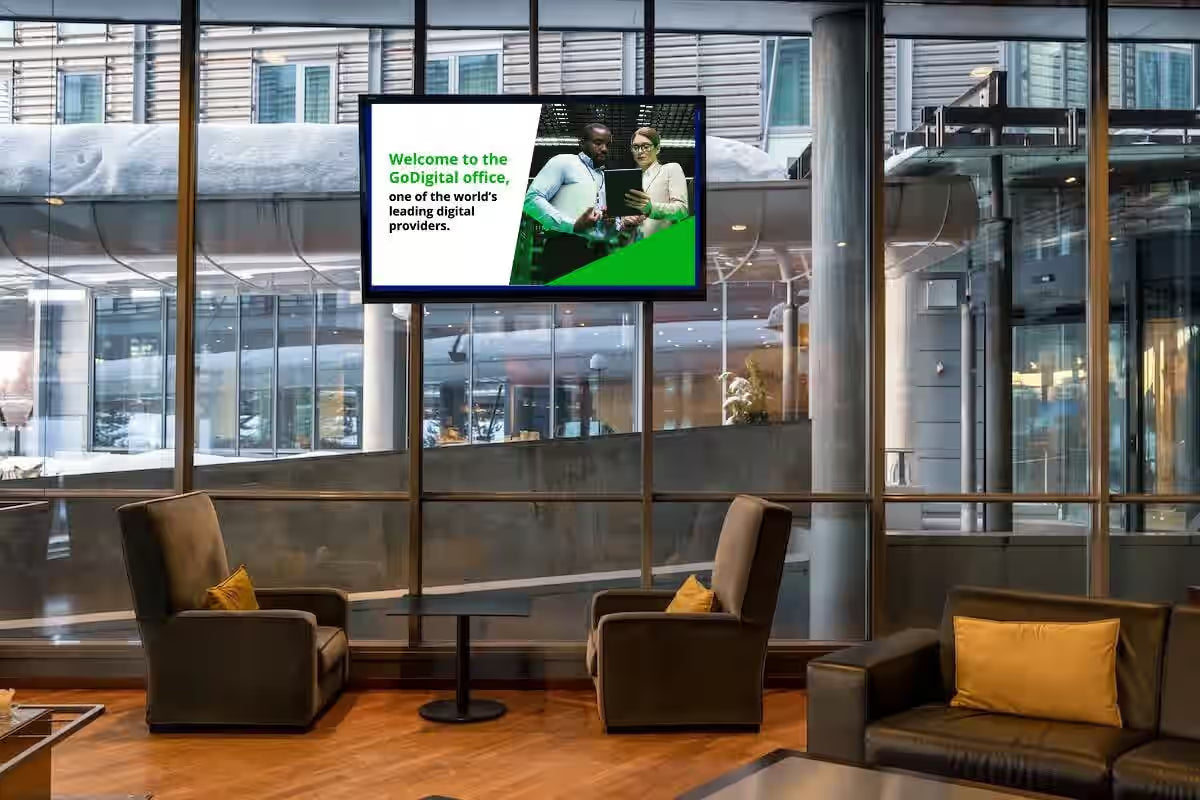
High-definition LCD digital display resolutions are mainstream at 4K (3840×2160) or 8K (7680×4320), with pixel densities exceeding 200 PPI, accurately presenting 0.1mm-level details (such as medica...
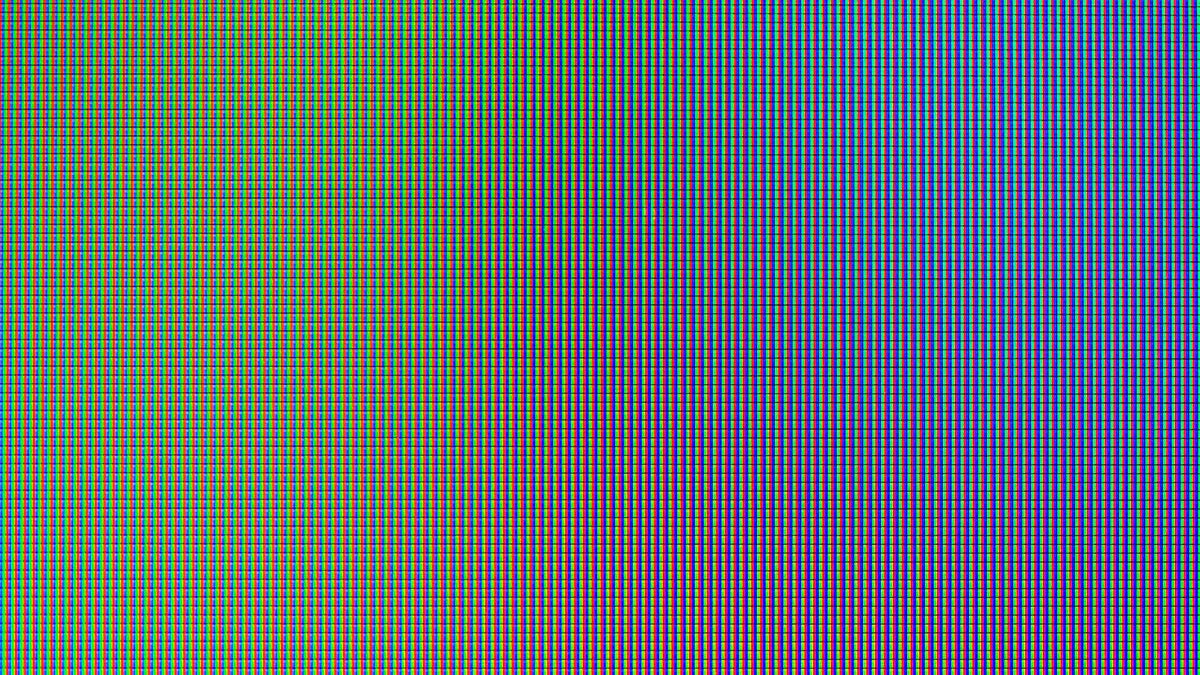
Tests show that if an LCD screen displays a fixed image continuously for over 1000 hours, uneven pixel luminescence will leave ghost images; Manufacturers recommend switching content every 2 hours....
1 commentaire
I have recently launched a new website focused on display technology, setup guides, and high-performance screens. This temporary project is a dedicated space for reviewing the best"https://vibegaming.com.bd
“>Gaming monitors where I am testing live search optimization, web traffic, and link-building strategies. Check out the site to see my setup and progress
Fazle Rabbi
Laisser un commentaire
Ce site est protégé par hCaptcha, et la Politique de confidentialité et les Conditions de service de hCaptcha s’appliquent.