



What is Resolution?
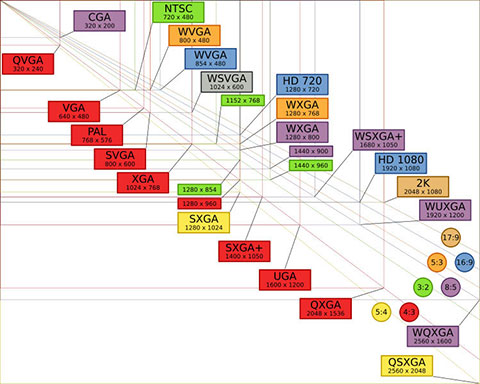
Resolution refers to the number of distinct pixels that a screen can display, typically denoted as width x height. For example, a 4K resolution is 3840 x 2160 pixels, offering exceptional detail. Higher pixel density, measured in PPI (pixels per inch), results in sharper images, often exceeding 300 PPI for smartphones.
What Resolution Means
A modern 4K Ultra High Definition (UHD) television has a resolution of 3840 x 2160 pixels. This means the screen displays a grid of 3,840 pixels across its width and 2,160 pixels down its height, resulting in a total of 8,294,400 individual pixels. In contrast, an older Standard Definition (SD) screen might be only 720 x 480 pixels, totaling just 345,600 pixels—a 24-times difference in total information.
At its core, resolution is simply a count of the total number of pixels used to create a digital image. A pixel, short for "picture element," is the smallest controllable point of light on a screen. Think of resolution as the dimensions of a grid. The specification is always written as Width x Height. For example, a resolution of 1920 x 1080 (known as Full HD) means the image is 1,920 pixels wide and 1,080 pixels tall.
The primary effect of resolution is on clarity and detail. A higher resolution means more pixels are packed into the same physical space. This allows for the display of finer details, such as sharp text in a document, individual blades of grass in a landscape photo, or crisp edges in a graphic design.
Absolute resolution (e.g., 3840x2160) is the fixed number of pixels in the image itself. Pixel density, measured in pixels per inch (PPI), describes how tightly those pixels are packed on a physical screen. A 6-inch smartphone screen with a 1080p resolution has a very high PPI (around 390 PPI), making it extremely sharp. A 55-inch TV with the same 1080p resolution has a much lower PPI (about 40 PPI), meaning each pixel is physically larger and potentially more visible from a close distance.
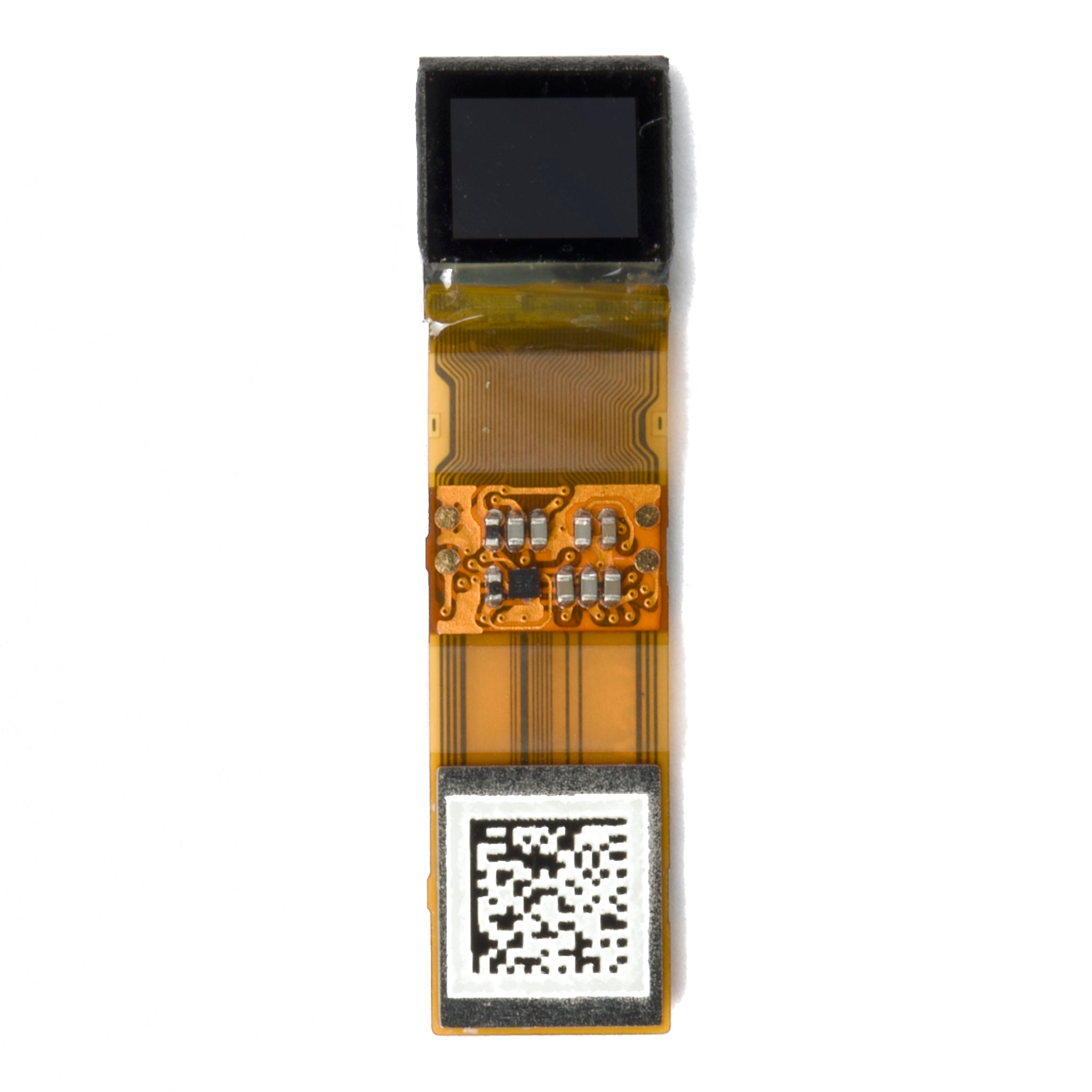
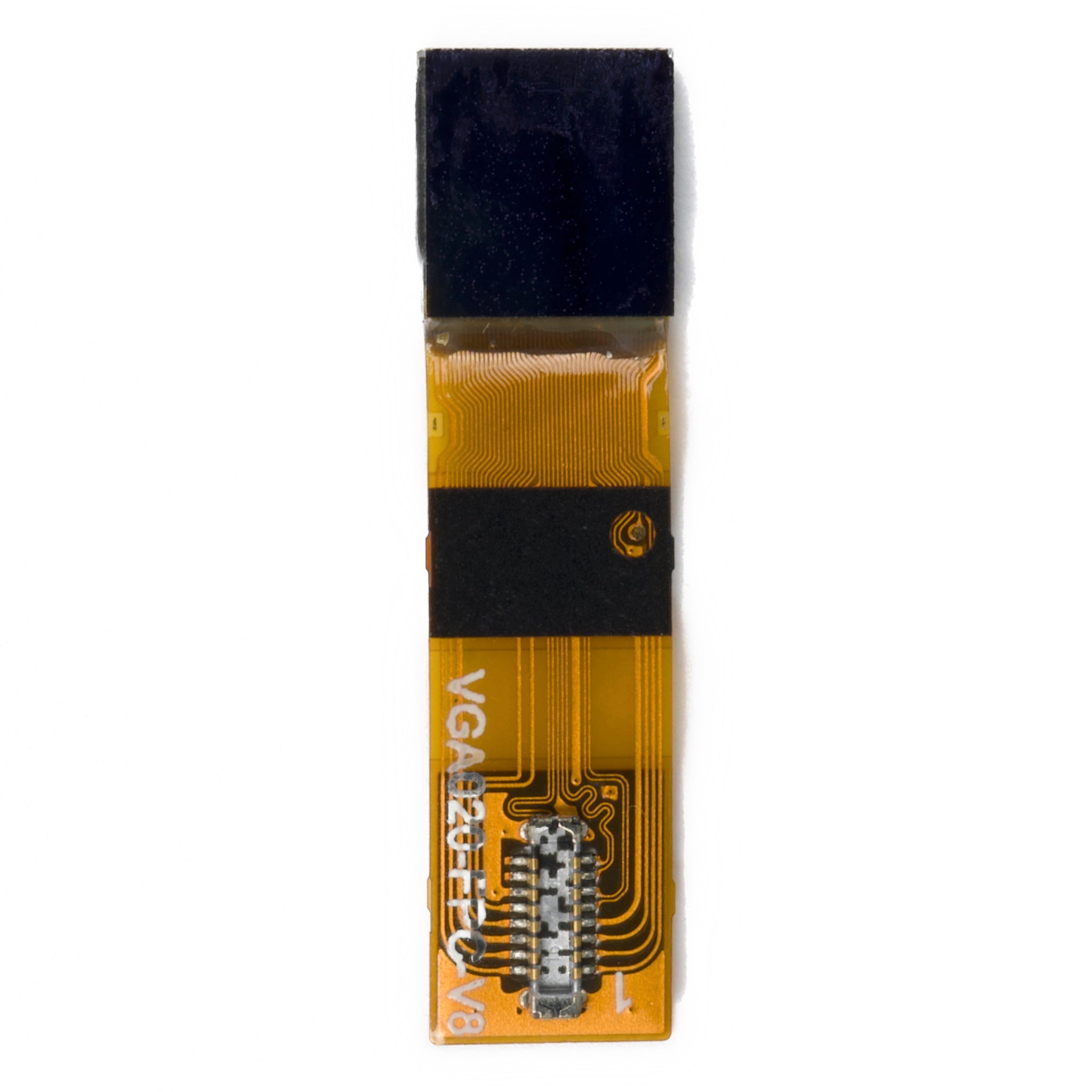
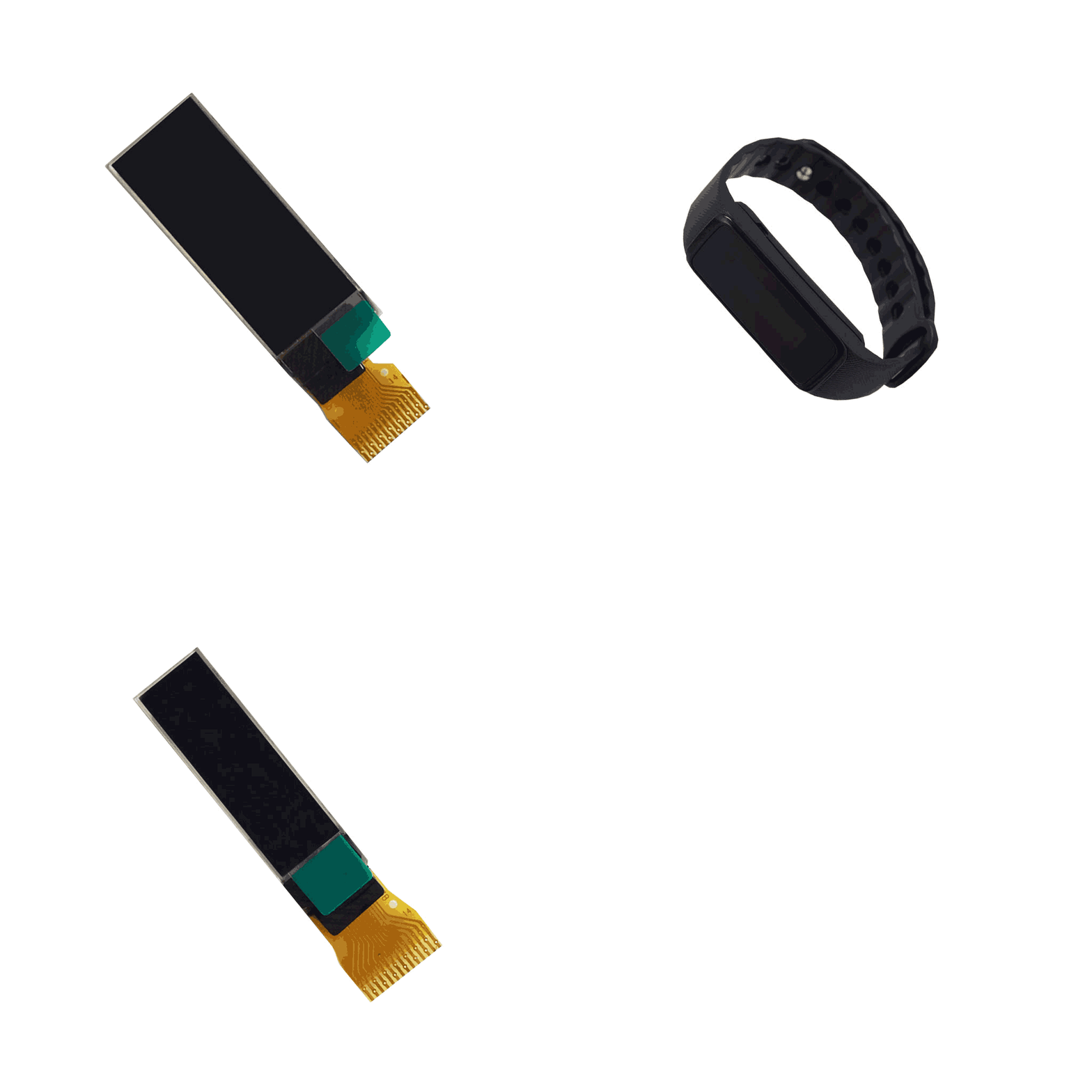
A single full-color pixel on a screen is typically made up of three sub-pixels: one red, one green, and one blue. So, 320(RGB) x 240 indicates that there are 320 groups of these RGB sub-pixels arranged horizontally. The arrangement of these sub-pixels (e.g., horizontal stripe, vertical stripe, or Pentile matrix) affects the manufacturing process and the final image quality, influencing the screen's production cost and perceived sharpness.
Pixels and Image Detail
The link between pixel count and detail is direct but not absolute. For instance, an 8-megapixel camera sensor captures images with a resolution of approximately 3264 x 2448 pixels, totaling 7,990,272 pixels. However, the perceived sharpness of a 4 x 6 inch print from this image will be vastly different from a 24 x 36 inch poster. The key factor is pixel density, which determines how much detail your eye can actually resolve.
1. Pixel Density:
Pixel density, measured in Pixels Per Inch (PPI), is the most important metric for perceived sharpness. It calculates how many pixels are packed into a single linear inch of your screen or print.
-
Calculation: PPI = √(Width_pixels² + Height_pixels²) / Diagonal_inches
-
Example: A 15.6-inch laptop screen with a common 1920x1080 (Full HD) resolution has a PPI of approximately √(1920² + 1080²) / 15.6 = 141 PPI.
-
Comparison: A 55-inch 4K UHD TV (3840x2160) has a lower PPI of around √(3840² + 2160²) / 55 = 80 PPI. Despite having four times the pixels of the laptop, the density is lower because the screen is so much larger.
2. The Role of Sub-Pixels and Arrangement
As noted in the original text, a single "pixel" on a color display is usually composed of three sub-pixels: red, green, and blue (RGB). The arrangement of these sub-pixels significantly impacts how precisely a display can render fine lines and text.
-
Standard RGB Stripe: This is the most common arrangement, with the three sub-pixels forming a vertical or horizontal bar. It offers a good balance of manufacturing cost and effective resolution.
-
Alternative Arrangements (e.g., Pentile): Some displays use layouts that share sub-pixels between adjacent pixels to reduce manufacturing cost or increase perceived brightness.
|
|
|
|
|
|
|---|---|---|---|---|
|
|
|
|
|
|
|
|
|
|
|
|
3. Viewing Distance: The Human Factor
The detail you perceive is a function of your eye's ability to resolve individual pixels. A standard human eye with 20/20 vision can resolve a detail that subtends an angle of about 1/60 of a degree.
-
Formula: Ideal Distance (in inches) = Screen Diagonal (in inches) / (0.0005 * Screen PPI)
-
Simplified Rule: A simpler, practical rule is to take 1.5 to 2.5 times the screen's diagonal size as the ideal viewing distance for a high-resolution display. Sitting closer than this, you may start to see the pixel grid.
Key Factors Determining Perceived Detail:
-
Pixel Density (PPI): The primary driver of sharpness. Aim for at least 90-110 PPI for computer monitors viewed at 2 feet, and 300 PPI for prints held at 1 foot.
-
Sub-Pixel Structure: Standard RGB stripe arrangements generally provide the most accurate rendering of fine details compared to shared-subpixel designs.
-
Viewing Distance: This determines the required PPI. A phone needs ~400 PPI because it's 12 inches from your face; a TV needs only ~80 PPI because it's 8 feet away.
-
Content Native Resolution: Displaying a low-resolution image (e.g., a 640x480 photo) on a high-PPI monitor (e.g., 2560x1440) will result in a blocky, soft image because the display must scale up the image, inventing pixels through a process called interpolation.
Types of Resolution
A 2-megapixel image might look perfectly sharp on a 5-inch smartphone screen (about 467 PPI), but appear blurry and pixelated when printed on a standard 8x10 inch photo paper at 300 PPI.
Confusing them is a common pitfall. Screen resolution dictates the maximum detail a display can show. Image resolution defines the amount of detail a file contains. Printer resolution determines how finely a device can reproducethat detail on a physical medium.
A 27-inch monitor with a native resolution of 2560 x 1440 pixels (Quad HD) can display more on-screen information simultaneously than a 27-inch monitor with a 1920 x 1080 pixel (Full HD) resolution. For example, you could comfortably view two standard 8.5-inch wide documents side-by-side at 100% zoom level on the 2560-pixel wide screen, whereas on the 1920-pixel screen, you would need to reduce the zoom to around 75%, making text smaller and harder to read.
It's critical to match your content's resolution to your screen's native resolution. Displaying a 1920x1080 image on a 3840x2160 (4K) monitor requires the display to scale the image by 200%. This process, called interpolation, forces the monitor to create new pixels to fill the gap, which can sometimes result in a slightly softer image than native 4K content.
A photograph from a 24-megapixel camera will have dimensions like 6000 x 4000 pixels. This value is fixed and independent of any screen. The quality of this image when viewed or printed depends entirely on how these pixels are distributed. A key concept here is Pixels Per Inch (PPI), which is a measure of pixel density.
How Resolution is Measured
A standard 24-inch desktop monitor might be advertised as 1920 x 1080, but its actual sharpness is better measured by its pixel density of roughly 92 Pixels Per Inch (PPI). In contrast, a professional 300 PPI print requires an image file with a density of 300 pixels for every linear inch of paper.
Screen Resolution Measurement
A 4K UHD TV has a fixed grid of 3840 x 2160 pixels; it cannot natively display a 1080p image without first processing it to fit this grid. The more useful metric for comparing screens of different sizes is Pixel Density, measured in Pixels Per Inch (PPI). PPI is calculated using the screen's diagonal resolution and its physical diagonal size.
For a 27-inch monitor with a 2560 x 1440 resolution, the PPI is calculated as follows: the diagonal pixel count is the square root of (2560² + 1440²), which is approximately 2936 pixels. Dividing this by the 27-inch screen size gives a PPI of about 109. This number allows for a direct comparison: a 15.6-inch laptop with the same 2560x1440 resolution would have a much higher PPI of 188, making it appear significantly sharper to the eye at a normal viewing distance. The human eye with 20/20 vision can resolve detail at a density of about 1 arc minute per line pair.
Image Resolution Measurement
A digital image file's resolution is defined by its absolute pixel dimensions—for example, 4000 pixels wide by 3000 pixels high. This measurement is independent of any physical size. The concept of PPI only becomes relevant when you assign a physical size to this image for printing or display. The image file itself may contain a PPI metadata value (often defaulting to 72 or 96), but this number is essentially arbitrary until the image is output. It is simply a instruction for software. The total amount of visual data is best described by the total pixel count, or megapixels. An 8-megapixel image (e.g., 3264 x 2448 pixels) contains roughly 33% more data than a 6-megapixel image (e.g., 3000 x 2000 pixels).
Printer Resolution Measurement
A 1200 DPI printer can place 1200 dots in an inch, while a 2880 DPI photo printer can place 2880 dots. It is critical to distinguish DPI from PPI. The image file provides the pixels (PPI), and the printer translates these into dots (DPI). Most printers use a process called dithering, where multiple ink dots of a few primary colors (e.g., Cyan, Magenta, Yellow, Black) are combined to create the illusion of a full-color pixel. Therefore, a printer may require a DPI value that is 3 to 8 times higher than the image's PPI value to produce a smooth, continuous-tone photograph.
The table below summarizes the key measurement units and their applications:
|
|
|
|
|
|
|---|---|---|---|---|
|
|
|
|
|
|
|
|
|
|
|
|
|
|
|
|
|
|
To print a sharp 8x10 inch photo, you need an image file with pixel dimensions of at least 2400x3000 pixels (300 PPI). This file is sent to a printer capable of 1440 DPI or higher.
Resolution in Everyday Use
The difference between a smartphone with a 1920x1080 display (~424 PPI on a 5.2-inch screen) and one with a 1280x720 display (~282 PPI) is immediately visible in the sharpness of text and the detail in photos. On a larger scale, streaming a 4K Ultra HD movie on a 55-inch television requires a consistent internet bandwidth of at least 15-25 Mbps, compared to just 5-8 Mbps for a 1080p HD stream.
|
|
|
|
|
|---|---|---|---|
|
|
|
|
|
|
|
|
|
|
|
|
|
|
|
|
|
|
|
|
|
|
|
|
|
How to Choose the Right Resolution for Your Needs
Making an informed decision involves balancing desired quality with practical constraints like budget, hardware capability, and use case. Here are the key factors to consider:
-
Screen Size and Viewing Distance: The goal is to achieve a high enough PPI that individual pixels are not discernible at your typical viewing distance. For a phone held 30 cm (12 inches) away, a PPI of 400 or higher provides a crisp "retina" experience. For a desktop monitor viewed from 60 cm (24 inches), a PPI of 100-140 is typically sufficient. For a 55-inch TV viewed from 2.5 meters (8 feet), a 4K resolution provides a clear upgrade from 1080p, but an 8K resolution offers no perceptible improvement for most viewers. The angular resolution of the human eye, which is approximately 1/60th of a degree, sets the physical limit for perceiving detail.
-
Content Availability and Source Quality: The benefit of a high-resolution display is lost if you primarily view low-resolution content. Streaming 1080p video on a 4K TV requires the TV to "upscale" the image. While modern processors do a good job, the result is still inferior to native 4K content. Similarly, viewing a small, 72 PPI image from a website full-screen on a 4K monitor will result in a blocky, pixelated appearance. Before investing in a high-res display, consider the resolution of the content you consume most often—be it movies, games, or web pages. A 1080p Blu-ray disc holds about 25-50 GB of data, while a 4K UHD Blu-ray can hold 66-100 GB, reflecting the significantly higher data required for the native higher resolution.
-
Performance and Workflow Requirements: Higher resolutions demand more processing power. In gaming, rendering a frame at 4K requires your graphics card to calculate 4 times as many pixels as 1080p. This can cut your frame rate (FPS) by 50% or more if the GPU is the bottleneck. For productivity, a higher resolution like 2560x1440 or 3840x2160 allows you to have multiple windows—like a web browser at 1200 pixels wide and a document at 1000 pixels wide—open side-by-side at full clarity, reducing the need to constantly switch between tabs and boosting efficiency by an estimated 15-25% for multi-tasking workflows.
Choosing the Right Resolution
A 27-inch 4K monitor (3840x2160) offers immense screen real estate but may require Windows or macOS scaling set to 150% to keep text readable, which can sometimes cause compatibility issues with older software. Conversely, a 1080p display at the same size needs no scaling but may show individual pixels when viewed closer than 3 feet. The price difference between comparable 1440p and 4K monitors can range from 300, a significant factor in any budget.
1. Match the Resolution to Your Primary Tasks
For general web browsing, email, and word processing on a monitor 24 inches or smaller, a 1920x1080 (Full HD) resolution is often perfectly adequate. The cost savings can be meaningful, and the pixel density of roughly 92 PPI is sufficient for clear text at a viewing distance of about 2 feet. However, if your work involves detailed visual content, the equation changes drastically. Graphic designers, video editors, and CAD engineers will benefit substantially from a higher resolution. A 27-inch 2560x1440 (QHD/2K) monitor provides a 78% increase in total pixels compared to 1080p, while a 4K display offers a 300% increase.
2. Honestly Assess Your Hardware's Capabilities
The GPU's video memory (VRAM) is also a factor; rendering at 4K can use 2-4 GB more VRAM than at 1080p. For streaming media, your internet connection speed becomes a bottleneck. Streaming a 4K video from services like Netflix or Disney+ consistently requires a bandwidth of 15-25 Mbps.
3. Factor in Viewing Distance and Content Availability
The concept of angular resolution determines whether your eye can actually see the added detail. For a television, the ideal viewing distance is typically 1.5 to 2.5 times the screen's diagonal size. This means for a 65-inch TV, the optimal viewing distance is between 8 and 13 feet. At this range, the difference between 4K and 1080p is noticeable, but the jump to 8K is often imperceptible to the average viewer.
Hinterlasse einen Kommentar
Diese Website ist durch hCaptcha geschützt und es gelten die allgemeinen Geschäftsbedingungen und Datenschutzbestimmungen von hCaptcha.