



LCD Panel Troubleshooting Guide | Screen Flickering, Black Screen, Bright Line Faults
Check power supply for screen flickering (voltage fluctuation ≤ ±5%), inspect backlight for black screen (replace if LED damage >30%), reinsert FPC cable;
Gently press bright lines to see displacement, replace screen if broken line.
Use multimeter to measure voltage, logic analyzer to check signals, prioritize eliminating contact and power supply issues.
Screen flickering
Screen flickering refers to the periodic bright-dark/jitter of LCD screen images. The U.S. Consumer Reports shows 35% of monitor repairs stem from this.
It manifests as low-frequency flicker below 60Hz (visible bright-dark alternation) or high-frequency PWM dimming fluctuations (>100Hz but with abnormal duty cycle).
Data: DisplayMate tests show that when refresh rate deviates ±5Hz from recommended value, flicker probability of 32-inch 4K screens increases by 40%;
When voltage fluctuation exceeds ±0.8V, backlight module failure rate rises by 55%.
Perceiving flicker
Low-frequency flicker:
Low-frequency flicker means the image repeats bright-dark changes with a period of 0.5-2 seconds, frequency mostly 30-59Hz (below the human eye comfort threshold of 60Hz).
-
Trigger scenarios: Old VGA cable transmission (default 50Hz), graphics card driver error forcing low refresh rate (e.g., Win11 mistakenly set to 50Hz), monitor energy-saving mode downclocking.
-
Perception details: Most obvious in dark environments at night (ambient light contrast amplifies flicker), accompanied by eye strain and attention dispersion; may be ignored under strong daytime light, but still causes eye fatigue after long viewing.
-
Test data: DisplayMate tested a 32-inch 1080P screen, when refresh rate dropped from 60Hz to 50Hz, flicker visibility rate rose from 5% to 73% (volunteer blind test); WHO report points out that when frequency <60Hz, eye fatigue incidence within 20 minutes increases by 40%.
-
Typical case: In a 2023 Reddit discussion, a MacBook Pro user connected an external Dell U2723QE monitor, due to poor HDMI cable contact, actual refresh rate was 48Hz, described as "like the jitter when an old CRT TV is turned on".
High-frequency jitter:
High-frequency jitter frequency is mostly 60-200Hz (above the human eye persistence threshold), hard to detect with naked eyes, but visible rolling or flickering stripes can be seen in camera shots (especially slow motion).
-
Trigger scenarios: Refresh rate mismatch (e.g., 144Hz screen locked to 60Hz by graphics card), insufficient DP cable bandwidth (DP 1.2 has insufficient margin for 4K@60Hz), electromagnetic interference (e.g., near microwave oven).
-
Perception details: Initially no obvious discomfort, headache (temporal pain) occurs after continuous viewing for over 1 hour; gamers feedback "motion blur overlays stripes, making aiming difficult".
-
Test method: Use iPhone slow motion (240fps) to shoot screen with solid color background (e.g., white webpage), if stripe movement speed is uneven (e.g., sometimes fast, sometimes stop), it points to backlight module or logic board failure.
-
Data support: RTINGS lab statistics, among 1000 LCD failures in 2022, high-frequency jitter accounted for 38%, 65% due to "incorrect refresh rate settings" (e.g., user manual overclocking failed); VESA tests show that when DP 1.4 cable transmits 4K@144Hz, bandwidth margin needs to be >15%, otherwise jitter probability increases by 50%.

Localized flicker:
Localized flicker manifests as brightness of a certain area (e.g., edge, corner) suddenly rising or falling, accounting for about 20%-25% (Source: iFixit Global Repair Database).
-
Trigger scenarios: Backlight zone failure (common in Mini LED screens), poor contact of logic board (T-Con) cable, local aging of light bar (single LED damaged).
-
Perception details: Initially occasional (several times a day), becomes frequent with use time (several times per hour); brightness change amplitude is mostly 20%-50% (e.g., drops from 300nit to 150nit), easily wakes users at night.
-
Positioning method: Use pure black background (e.g., close all windows), observe if flickering area is fixed—if top-left often flickers, it may be left light bar issue; if random positions flicker, it points to loose logic board cable.
-
Repair data: Samsung Neo G8 (Mini LED) repair report shows, 72% of localized flicker cases were due to damaged backlight zone driver IC, replacing a single IC costs about $30 (requires professional equipment welding); LG C2 OLED rarely has localized flicker, but uneven pixel decay also causes similar phenomena (accounts for 15% of OLED failures).
How to accurately describe flicker
When reporting to brand after-sales (e.g., Dell USA, LG Electronics), users need to provide quantifiable details to avoid vague statements like "screen flickers":
-
Environment: "At night with lights off, screen brightness 50%";
-
Frequency: "Bright-dark once every 1.5 seconds" (low-frequency flicker) or "Camera 240fps shot shows stripes, uneven movement speed" (high-frequency jitter);
-
Area: "Top-left 10cm×10cm area brightness drops 30%" (localized flicker);
-
Test: "Disappears after changing DP cable, recurs when switching back to original cable" (points to cable issue).
Scenario triggers
When using an external laptop
External monitors with laptops are a major flicker hotspot, problems lie in interface, cable, protocol conversion three links.
-
Insufficient cable bandwidth: HDMI 1.4 cable max bandwidth 10.2Gbps, just enough for 4K@30Hz, 4K@60Hz requires 18Gbps (HDMI 2.0 standard), insufficient margin causes frame loss and flicker. VESA test: Using HDMI 1.4 cable to connect RTX 3080 laptop and 4K screen, flicker probability at 4K@60Hz reaches 62%; switching to HDMI 2.1 cable (48Gbps) reduces it to 3%.
-
Dongle loss: USB-C to HDMI/DP dongles not supporting full bandwidth "DisplayPort Alt Mode" (e.g., only supporting DP 1.2), transmitting 1080P@144Hz will drop to 60Hz flicker. Linus Tech Tips test: Apple USB-C to HDMI dongle (model A2119) shows 40% higher stripe jitter amplitude at 144Hz than direct DP connection.
-
Graphics card output mode conflict: Under discrete GPU direct connection mode (e.g., Lenovo Legion Slim 7 "Hybrid Mode Off"), external screen refresh rate synchronization is more stable; in hybrid mode, integrated GPU intervenes, prone to 60Hz lock frequency flicker.
-
Interface oxidation: Long-term plugging/unplugging of laptop HDMI port causes pin oxidation, increasing contact resistance by 30% (CRC electronic cleaner test data), manifested as "occasional flicker", temporarily recovers after tapping interface.
When using multi-screen extension
When extending desktop with two or more monitors, synchronization error is the main cause.
-
Refresh rate desynchronization: Main screen 144Hz + secondary screen 60Hz extension, in NVIDIA Surround test, mouse cross-screen movement forces secondary screen refresh rate to follow main screen, error >2ms causes flicker. RTINGS statistics: In 2023 multi-screen failures, 58% due to "main-secondary screen refresh rate difference >30Hz" (e.g., 144Hz+75Hz).
-
Extension mode protocol conflict: AMD Eyefinity and NVIDIA Surround mixed use causes incorrect EDID information reading for some monitors.
-
Cable length impact: Signal attenuation occurs when DP cable exceeds 3 meters, 5-meter long cable has 25% higher flicker probability than 1-meter short cable at 4K@60Hz (Club3D cable test report).
Old device with new graphics card
Old monitor with new graphics card, overclocking or protocol incompatibility easily triggers flicker.
-
Forcibly overclocking old screen: 1080P 60Hz old screen (e.g., 2015 ASUS VS239HR) connected to RTX 4080, user manually sets 1080P@144Hz, 10% samples show edge flicker after overclocking. iFixit teardown found old screen T-Con board only supports 60Hz timing, overclocking causes row/field sync signal chaos.
-
New graphics card output format incompatibility: AMD RDNA3 graphics cards default output YCbCr 4:2:0 color (save bandwidth), old screens only recognize RGB 4:4:4, causing color banding overlay flicker. DisplayMate test: After setting RX 7900 XTX to "RGB Full" mode, old screen flicker disappears.
-
Power supply cannot drive new screen: Old power supply (e.g., 12V 3A, 36W) driving 27-inch 2K 144Hz screen (power consumption ~45W), voltage pulled down to 10.5V, backlight module efficiency drops 30% triggering flicker. IEEE research: When power load exceeds 80%, probability of voltage fluctuation ±1.2V increases by 70%.
Unstable voltage environment
U.S. grid nominal 110V, actual fluctuation often exceeds ±10%, directly affecting monitor power module.
-
Household voltage trough: During peak hours (7-10pm) or old communities, voltage may drop to 95V.
-
UPS power interference: Standby UPS outputs square wave instead of sine wave, monitor power filter cannot fully eliminate harmonics. APC UPS test report: Flicker probability when using UPS is 45% higher than direct grid connection, online UPS (sine wave output) reduces to 12%.
-
Long-distance transmission loss: Suburban users far from substations, wire resistance causes end voltage low. California PG&E data: Users >5 miles from substation, probability of voltage <100V reaches 18%, flicker accounts for 32% of monitor repairs in such areas.
Self-check steps
Try a reliable cable
Cable is the number one cause of flicker, 30% of cases solved by changing cable (Linus Tech Tips tested 100 faulty screens). Focus on bandwidth and interface version:
-
HDMI cable: HDMI 1.4 max bandwidth 10.2Gbps (only supports 4K@30Hz), HDMI 2.0 is 18Gbps (4K@60Hz), HDMI 2.1 reaches 48Gbps (4K@120Hz). Using HDMI 1.4 cable to connect RTX 4070 laptop for 4K@60Hz, VESA test flicker probability 62%; switching to HDMI 2.1 cable (e.g., Amazon Basics Ultra HD HDMI cable) reduces to 3%.
-
DP cable: DP 1.2 bandwidth 21.6Gbps (supports 4K@60Hz/1440P@144Hz), DP 1.4 is 32.4Gbps (4K@144Hz). Club3D test: 5-meter DP 1.2 cable for 4K@60Hz, signal attenuation causes 25% higher flicker probability than 1-meter short cable, recommend short distance use DP 1.4 cable (e.g., Cable Matters DP 1.4).
-
Operation details: When unplugging, hold cable shell (not pull cable body), wipe interface pins with anhydrous alcohol cotton swab (oxidation increases contact resistance by 30%), plug tightly and restart device.
Try single screen mode
Synchronization error in multi-screen extension easily causes flicker, single screen mode eliminates 90% of extension conflicts (NVIDIA official support document).
-
Windows operation: Settings > System > Display > Multiple displays, select "Show only on 1";
-
macOS operation: System Preferences > Displays > Arrangement, uncheck all screens except "Mirror Displays";
-
Test logic: If still flickers in single screen, points to host or monitor problem; if not flickering in single screen, indicates multi-screen refresh rate desynchronization (e.g., main 144Hz + secondary 60Hz, synchronization error >2ms causes flicker, RTINGS data).
Adjust refresh rate to nominal value
Incorrect refresh rate setting is the main cause of high-frequency jitter, deviation ±5Hz from recommended value increases flicker probability by 40% (DisplayMate tested 32-inch 4K screen).
-
Find nominal value: Check the label on the back of the monitor (e.g., LG 27GP850 marked "144Hz") or manual (Dell S2721DGF marked "165Hz");
-
System settings: Windows enter Settings > System > Display > Advanced display, dropdown select nominal value (e.g., 144Hz); macOS enter System Preferences > Displays > Refresh Rate select "Default";
-
Pitfall reminder: Don't believe "higher overclocking is smoother", 1080P 60Hz old screen (e.g., ASUS VS239HR) forcibly set to 144Hz, 10% samples show edge flicker, iFixit teardown found old screen T-Con board only supports 60Hz timing.
Measure voltage with socket meter
U.S. grid nominal 110V, fluctuation exceeding ±5V easily triggers flicker, Kill A Watt socket power meter (Amazon bestseller) provides直观 readings.
-
Operation steps: Plug monitor power cord into Kill A Watt, then into wall outlet, check "Voltage" value after startup;
-
Normal range: 110V±5% (104.5-115.5V), when below 99V or above 121V, IEEE research shows monitor power efficiency drops 25%, flicker probability rises 55%;
-
Case: Florida user measured 92V with Kill A Watt (peak hours), Dell U2720Q flickers, recovered after avoiding peak or using stabilizer (e.g., APC Line-R 1200VA).
Shoot slow-motion video
High-frequency jitter invisible to naked eyes, iPhone/Android slow motion can capture stripes (240fps or higher).
-
Shooting method: Open solid color background (e.g., new blank document), iPhone enter camera select "Slow Motion" (240fps or 1080p 240fps), Android (e.g., Samsung S23) select "Super Slow Motion" (960fps);
-
Judgment standard: If rolling stripes are seen during playback, and stripe movement speed is uneven (sometimes fast, sometimes stop), it points to backlight module or logic board failure (RTINGS lab statistics account for 65% of high-frequency jitter);
-
Advanced analysis: Import video into Adobe Premiere,check stripe frequency, if inconsistent with refresh rate (e.g., 144Hz screen stripe frequency 60Hz), indicates forced lock frequency.
Clean interface dust
Interface oxidation causes poor contact, 30% of "occasional flicker" stems from this (CRC electronic cleaner test).
-
Tools: CRC QD Electronic Cleaner (commonly used in U.S. electronics repair, available on Amazon), dip small amount on cotton swab and spray interface (HDMI/DP port);
-
Operation: After power-off, spray 2-3 times, let liquid volatilize for 1 minute, then sweep away dust with brush (don't use metal brush to prevent pin scratching);
-
Effect: Contact resistance drops from 50mΩ to 15mΩ after cleaning (CRC test data), Reddit user feedback: MacBook Pro USB-C port oxidation flicker, stable after cleaning.
Black Screen
Black screen accounts for 32% of global LCD panel repair cases (iFixit 2023 data), manifested as complete no-display (60%) or backlight anomaly (40%).
Among them, backlight-off type (faint outline visible in dark environment) accounts for 45%, constant gray-white type accounts for 15%.
Power failure (35%), backlight system (28%), motherboard (22%), logic board (10%), panel physical damage (5%) are main causes.
Average DIY repair cost 25, professional repair 80-150, screen replacement 120-$300 (Consumer Reports 2024).
Quantitative performance
Complete no-light black screen:
This type accounts for 60% of global LCD repair cases (iFixit 2023), screen surface brightness <0.1 nits (normal display 200-300 nits), illuminance meter measurement almost no reading when placed against screen.
From user perspective, regardless of connecting computer, game console or playing video, screen remains completely black, even power indicator light doesn't turn on.
Backlight-off but shadow-visible black screen:
This accounts for 45% of black screen cases (45% of total 32%, i.e., ~14.4%), called "backlight-off type".
Screen itself isn't damaged, only backlight bar or driver board isn't working, liquid crystal layer can still display images, just no light passes through.
Constantly lit backlight but nothing-shown black screen:
This accounts for 15% of total cases, screen continuously emits gray-white light (brightness about 50-80 nits), like covered with fog, no text, icons or images.
Cause is logic board not outputting correct image signals, liquid crystal layer not properly driven, only backlight ambient glow.
Intermittent black screen:
Accounts for 10% of black screen cases (excluding above three types), characterized by blacking out 1-3 times daily, each lasting 5-30 seconds before recovery. Data from ERI European Repair Association 2024 statistics:
-
Trigger conditions: Temperature rise of 10℃, failure rate increases 40% (Dell lab data)—e.g., monitor placed in enclosed TV cabinet, internal dust reduces heat dissipation efficiency by 50%, prone to occur in summer afternoons;
-
Signal fluctuation: Oscilloscope measurement of motherboard output, normal signal jitter <5%, intermittent black screen时 jitter reaches 20% (Acer Predator XB273K case);
-
Brand differences: LG 27UL850 due to driver board capacitor value decay (from 1000μF to 600μF), intermittent black screen accounts for 18% of this model's repairs (LG repair database).
Brightness differences of black screen across different screen sizes
Screen size affects backlight system load, black screen performance also differs (Consumer Reports 2024):
-
24-27 inch (mainstream office): Backlight-off type accounts for 52% of black screens in this category, fewer light bars (usually 2 groups × 6 LEDs), single LED damage may cause entire group to turn off (e.g., HP EliteDisplay E243);
-
32-49 inch (ultrawide/curved): Constantly lit backlight type accounts for 38%, because logic board needs to handle higher resolution (5120x1440), signal interference probability increases 25% (Samsung C49HG90);
-
4K/8K professional screens: Complete no-display accounts for 45%, because driver board power demand is high (12V/5A), power adapter overload burnout rate is 30% higher than 1080p screens (ViewSonic VP2785-4K).
Fault causes
Power supply issues:
Power failure accounts for 35% of black screens, divided into external and internal power supply.
-
Adapter failure (60% of power failures)
Adapter unstable output voltage or no output causes black screen. Apple Thunderbolt Display original adapter overvoltage burnout rate 12% (Apple Support 2024), users replacing with third-party 19.5V/3.34A adapter (e.g., Targus) reduces failure rate by 80%. Among Dell S2719H users, 23% of power failures are due to loose adapter DC head, voltage drops from 12V to 8V when shaken.
-
Motherboard power module failure (40%)
DC-DC chip on motherboard converts 12V to 5V/3.3V for driver board, chip failure cuts off voltage. DC-DC chip burnout on Dell S2719H motherboard accounts for 55% of such failures, replacing chip with hot air gun (cost $15) restores normal function in 85% of cases (iFixit teardown data). HP EliteDisplay E243 due to insufficient capacitor filtering, voltage ripple rises from 50mV to 200mV, triggering overvoltage protection black screen (HP repair manual).
Backlight system failure:
Backlight system responsible for screen illumination, failure accounts for 28%, divided into light bars and driver boards.
-
LED light bar aging (65% of backlight failures)
Light bars age over time, reduced brightness detected by driver board shuts off backlight. Samsung C49HG90 after 5000 hours continuous display (~2 years, 7 hours/day), light bar attenuation rate 40% (DisplayMate aging test), single LED brightness drops from 3000mcd to 1800mcd.
-
Driver board (Inverter) boost failure (30%)
Driver board converts low voltage to 400-1000V high voltage for light bars, capacitor bulging or chip failure causes boost failure. Capacitor bulging on LG 27UL850 driver board accounts for 72% of such failures, measuring capacitor value with multimeter, normal 1000μF drops to 600μF indicates failure (ERI 2024 data). Sharp PN-K321 driver board MOSFET burnout, high voltage output drops from 800V to 0V, replacing MOSFET ($8) fixes issue.
Motherboard/driver board issues:
Motherboard/driver board failure accounts for 22%, divided into BIOS errors and component aging.
-
BIOS program error (40% of motherboard failures)
Flashing wrong firmware or static electricity causes BIOS corruption, screen won't start. Among HP EliteDisplay E243 users flashing third-party firmware, 18% experience black screen, resolved by flashing back official firmware (v2.1.3) via USB. Acer Predator XB273K black screen due to dead BIOS battery (CR2032 voltage <2.8V), resetting settings, replacing battery ($2) restores normal function.
-
Filter capacitor bulging (35%)
Electrolytic capacitors on motherboard bulge/leak after 3-5 years (25℃ room temp), poor filtering causes unstable voltage. Bulging 1000μF/16V capacitors on Dell S2719H motherboard account for 55% of such failures, replacing with same-spec solid capacitors (10-year lifespan) reduces failure rate by 90%. Magnifying glass inspection, if bulge height >1mm, replacement needed (iFixit standard).
Logic board (TCON) failure:
Logic board manages image timing, failure accounts for 10%, divided into cable contact and storage chip issues.
-
Cable oxidation (60%)
LVDS/eDP cable gold fingers oxidize over time, signal transmission fails. Oxidation on Philips 279C1 display cable accounts for 83% of such failures, wiping gold fingers with anhydrous alcohol (resistance drops from 10Ω to 0.5Ω) restores display in 75% of cases. ViewSonic VP2785-4K cable bent over 5 times, breakage rate increases 40% (manufacturer test).
-
EEPROM data loss (30%)
Storage chip on logic board stores timing parameters, erasure causes image garble turning gray-white. Among ViewSonic VP2785-4K users exposing screen to magnet, 12% experience this failure, fixing by reprogramming EEPROM (cost 20). DellU4025QW logic board EEPROM voltage <3V data loss (normal3.3V), replacing button battery (3) resolves.
Panel self-damage:
Panel physical damage accounts for 5%, divided into liquid crystal layer break and internal线路 burn.
-
Liquid crystal layer break (70%)
Impact or pressure causes liquid crystal molecule misalignment, blacked-out area fixed. Among Dell U4025QW panel breakage cases, 82% caused by corner impact during transport (5kg force hitting desk corner, Sharp test breakage rate 92%), microscope shows glass substrate cracks.
-
Internal circuit fuse blown (30%)
Overheating or voltage spikes can burn the glass substrate circuitry. In high-temperature testing (60℃ environment), 30% of Sharp PN-K321 units experienced circuit burnout; a micro-ohmmeter measurement showing circuit resistance >100Ω indicates burnout (requiring screen replacement).
DIY vs Professional Services
DIY repairable scenarios:
DIY only applicable to modular failures (components replaceable individually, no chip-level debugging required), divided into three categories:
-
Replace power adapter (95% success rate, cost 30)
Official adapter price 80 (e.g., Apple Thunderbolt Display original 25, matching error <0.5V acceptable (Dell spec requirement). Measure old adapter no-load voltage with multimeter (normal 19.5V±0.5V), if deviation >1V, replace directly.
-
Solder backlight light bar (85% success rate, cost 50)
Only for light bar aging (non-breakage), tools require hot air gun (350℃ setting), tweezers, same-model light bar (Samsung C49HG90 light bar 2), or replace entire bar.
-
Flash motherboard BIOS (90% success rate, cost 10)
HP EliteDisplay E243 black screen due to wrong firmware flash, download official firmware (v2.1.3, free) from website, boot flash via USB FAT32 formatted drive (5 minutes). Acer Predator XB273K black screen due to dead BIOS battery (CR2032 voltage <2.8V), replacing battery $2 (100% success rate).
Dangerous DIY tasks to avoid:
Success rate <50% for following scenarios, may expand damage:
-
Backlight driver board (Inverter) repair: Contains 400-1000V high-voltage capacitors, ERI statistics DIY electric shock rate 5% (12 accidents in 2023), LG 27UL850 driver board capacitor bulging requires replacing 6 capacitors (value 1000μF/35V), manual soldering is difficult (pin spacing 0.5mm).
-
Motherboard chip-level repair: e.g., Dell S2719H DC-DC chip (MP2307) burnout, requires hot air gun (280℃) to remove chip, apply solder paste, align pads (error <0.2mm), non-professional tools (e.g., ordinary soldering iron) success rate <30%.
-
Logic board EEPROM rewrite: ViewSonic VP2785-4K requires CH341A programmer (cost $15) + software (free), but parameter write error causes permanent gray-white screen (manufacturer warning).
Professional service coverage:
Professional repair covers chip-level debugging, precision component replacement, panel repair, divided into three categories:
-
Motherboard/logic board chip repair (60% success rate, charge 120)
Dell S2719H DC-DC chip replacement including labor 20), soldered with BGA rework station (precision 0.1mm), success rate 65% (iFixit technician data). HP Z27q logic board gamma voltage offset requires adjusting 12 potentiometers (error <0.05V), professional equipment (oscilloscope + signal generator) takes 2 hours.
-
EEPROM data recovery (70% success rate, charge 100)
ViewSonic VP2785-4K logic board EEPROM erased, reprogram timing parameters (128KB data) with programmer, charge 10). For severe oxidation on Philips 279C1 cable, professional cleaning uses ultrasonic equipment (frequency 40kHz), contact resistance drops from 10Ω to 0.5Ω (80% success rate).
-
Panel internal line repair (5% success rate, charge $150+)
Only repairable for few models like Sharp PN-K321, locate fuse circuit with microscope (100x), apply conductive silver glue (resistance <1Ω), but repaired lifespan <6 months (manufacturer data), most cases directly replace screen ($250).
Professional service pricing details:
Based on Midwest U.S. repair shop quotes (2024):
|
Service Item
|
Parts Cost (USD)
|
Labor Cost (USD)
|
Total Cost (USD)
|
Time Taken
|
|---|---|---|---|---|
|
Power Adapter Replacement
|
$25 (third-party)
|
$30
|
$55
|
15 minutes
|
|
Backlight Light Bar Soldering
|
$30 (light bar)
|
$40
|
$70
|
45 minutes
|
|
Motherboard DC-DC Chip Replacement
|
$15 (chip)
|
$50
|
$65
|
1 hour
|
|
Logic Board EEPROM Rewrite
|
$20
|
$40
|
$60
|
30 minutes
|
|
Panel线路 Repair
|
$50 (silver glue etc.)
|
$100
|
$150
|
2 hours
|
Basis for choosing DIY or professional:
-
Choose DIY: Power adapter failure (50 or less), BIOS flashing (free), budget <$50, strong hands-on ability.
-
Choose professional: Motherboard chip failure (60+), panel breakage (80, or need manufacturer warranty (professional repair retains proof).
ERI statistics: DIY users save average 120+ screen replacement); professional users pay $40/time premium,换取 90% first-time fix rate (DIY first-time fix rate 75%).
Bright Line Faults
LCD screen bright line fault manifests as fixed non-image horizontal or vertical bright lines (usually white/green), 60% related to FPC cable contact issues, 15% caused by irreversible panel damage from impact.
Brightness reaches 300–500 nits (normal pixel baseline 200 nits), detectable via 0.5kg pressure test.
Definition
What exactly is wrong with the screen when there's a bright line?
LCD imaging relies on three-layer structure collaboration: bottom LED backlight module provides uniform light source, middle liquid crystal layer acts like "blinds" (liquid crystal molecules rotate under voltage to control light passage), upper RGB filter generates colors.
When T-CON board (timing control board) sends abnormal voltage signals to certain rows or columns of liquid crystal molecules (e.g., signal interruption or excessive voltage), these molecules cannot close as required by image, backlight directly penetrates liquid crystal layer, forming fixed bright lines on screen.
How are bright lines different from bad pixels and dark lines?
Don't confuse bright lines with common screen defects, clarify differences with data:
-
Bad pixel: Isolated always-on/always-off point (diameter ~0.1mm), caused by damage to individual pixel's RGB subpixels. iFixit statistics, bad pixel occurrence rate ~3% (new screens), and won't spread into lines.
-
Dark line: Non-luminous but contoured lines, brightness <50 nits (normal pixel 200 nits), mostly due to internal electrode break in liquid crystal layer (cannot transmit light), pressing screen may brighten (temporarily connect), but cannot disappear completely.
-
Bright line: Continuously luminous, brightness 300–500 nits (50–150% higher than normal pixels), most obvious on solid color backgrounds (e.g., bright line looks like "wound" on all-white screen).
What do bright lines look like? More horizontal or vertical?
Bright lines have two forms, occurrence locations and proportions have clear patterns:
-
Horizontal bright line: Runs left-right across screen, accounts for 70% of bright lines (iFixit 2023 data).
-
Vertical bright line: Runs top-bottom across screen, accounts for 30%.
Device type also affects form: Monitors (e.g., Samsung Odyssey) due to mainly horizontal cable routing, horizontal bright lines account for 75%;
TVs (e.g., LG C3) due to large-size panels using multiple cable groups, vertical bright lines slightly more (35%).
How bright are bright lines?
Bright line brightness far exceeds normal pixels, specific test data:
-
Base brightness: Normal LCD pixels at 100% white image brightness ~200 nits (e.g., Dell U2723QE rated brightness).
-
Bright line brightness: Measured 300–500 nits (DisplayMate lab data), maximum 550 nits (panel damage-type bright lines from compression).
-
Contrast performance: Bright line area contrast <100:1 (normal area 1000:1), so more glaring on dark backgrounds (e.g., bright line appears during movie black screen).
Which devices are most prone to bright lines?
Bright line occurrence strongly correlates with device structure, iFixit 2023 statistics on thousands of repair cases:
-
Laptops: Highest bright line proportion (45%), 60% occur near hinges (cables break after >10,000 bends). HP Spectre x360 due to compact hinge design, bright line occurrence rate 18% higher than similar models (HP 2022 internal report).
-
External monitors: Account for 30%, mostly due to HDMI/DP cable poor contact (15%) or T-CON board capacitor aging (12%). Samsung S27A800UJ monitor after 3 years use, T-CON board failure-caused bright lines account for 22%.
-
TVs: Account for 25%, large-size panels (55 inches+) more prone to panel damage from transport impact (40% of TV bright lines). Exception LG C series OLED (OLED has no liquid crystal layer, bright lines are actually always-on pixels, different mechanism).
Additionally, device usage frequency significantly affects: Monitors used >8 hours/day have 2.3x higher bright line occurrence rate than light use (<4 hours) (uBreakiFix 2024 data).
Causes
Loose or broken cable?
LCD screen and motherboard connect via FPC flexible cable (Flat Flexible Cable) for signal transmission, this cable thin as paper, contains dozens of fine wires inside.
Laptop hinge area worst—daily opening/closing bends cable, iFixit disassembled a 3-year-old MacBook Air, hinge area cable bent over 12,000 times, outer insulation cracked, inner wires either oxidized black or directly broke one.
Cable interface exposed to air, when humidity >60%, gold fingers (gold-plated contacts) generate oxide layer within half year (thickness ~0.1μm), signal transmission packet loss, corresponding liquid crystal molecules don't receive "turn off" command, stay lit.
DisplayMate tests show oxidation-caused bright lines more obvious at low temperatures (-10°C)—metal contraction worsens contact, brightness rises from 300 nits to 450 nits.
Screen impacted?
LCD liquid crystal layer like glass box filled with liquid, each liquid crystal molecule normally "lines up" controlled by voltage to control light.
If screen hit (e.g., 0.3 joule impact force, equivalent to apple dropping 30cm hitting screen), or sat on (hip pressure ~50kg concentrated on 5cm²), liquid crystal molecules get "out of line", some directly puncture insulation layer, stick to adjacent molecules.
Microscope view, damaged area liquid crystal molecules arranged chaotically like overturned matchbox, no matter how voltage adjusted, they can't return to original angle.
iFixit repaired a dropped Samsung 32-inch monitor, 2cm bright line at top-right corner, disassembly showed tiny crack in liquid crystal layer (length ~0.5mm).
Impact angle also affects bright line form: Front hit easily causes horizontal bright lines (entire row molecules chaotic), corner hit easily causes vertical bright lines (entire column molecules chaotic).
Small parts on control board broken?
Most fragile on this board are surface mount capacitors and driver chips.
Capacitors after 3-5 years, electrolyte dries (capacity drops from 10μF to 3μF), belly bulges (height from 1.2mm to 1.8mm), causing voltage instability.
T-CON board attached beside screen backlight bar, bar operating temperature reaches 70°C, solder joints slowly melt (cold solder), signals intermittent.
Samsung S27A800UJ monitor after 4 years use, T-CON board failure-caused bright lines account for 22%.
Different brands have different T-CON board issues: Dell monitors mostly capacitor bulging (70% of T-CON failures), LG TVs mostly driver chip cold solder (TV heat dissipation worse, chip temperature 10°C higher than monitors), Apple MacBook T-CON board highly integrated, replacement whole board needed if broken (costlier than repair).
Backlight bar or light guide plate issues?
LCD backlight has two types: Direct-lit (LED beads evenly spread behind screen) and Edge-lit (light bars at edges, scatter light via light guide plate).
Light guide plate scratches also disrupt. Light guide plate is plastic (PMMA material), surface has dense light guide dots, if wiped with hard cloth (e.g., tissue), creates fine scratches (depth >0.01mm), light scatters at scratch, forming bright line.
Data shows, edge-lit TVs after 5 years use, backlight anomaly-caused bright lines account for 15%, direct-lit only 5% (more LEDs, one failure not obvious).
LED bar shorts mostly due to moisture (humidity >80%, solder joints rust short), light guide plate scratches mostly due to improper cleaning (wiping with >70% alcohol cleaner).
Repair Solutions
Loose or broken cable?
Case 1: Cable just loose or oxidized
Tools only need eraser (ordinary drawing eraser) and cotton swab.
Operation steps:
Power off, disassemble screen bezel (laptop remove keyboard/palm rest, monitor remove back cover), find FPC cable interface (usually below or side of screen, flat with gold fingers).
Use eraser gently wipe gold fingers at both ends of cable (3-5 wipes per contact), remove oxide layer.
Cotton swab dipped少量 isopropyl alcohol (99% purity) wipe interface slot, dry then plug cable tightly, secure clip.
Cost:
0 (parts) + DIY 30 minutes, or pay uBreakiFix 50 labor.
iFixit data shows 60% oxidized cables restore after cleaning, especially laptop hinge cables (within 12,000 bends).
Case 2: Cable broken or deep crease
Microscope shows single wire break (cross-section thinning) or outer insulation crack (exposed copper), requires cable replacement.
First check device model (e.g., Dell XPS 13 9310 screen cable model "DC02C00L000"), buy same-spec FPC cable (eBay or iFixit store, $20-80).
When removing old cable note cable routing (leave 10% slack at laptop hinge to prevent second bend), insert new cable aligning interface notch, flatten gold fingers with tweezers, test then assemble.
Cost:
Parts 20-80 + Labor 30 minutes (DIY) or 50-100 (professional).
HP Spectre x360 hinge cable replacement average 45 minutes, 95% success rate (uBreakiFix 2024 data).
Screen impacted with bright line?
Screen replacement steps:
First confirm screen model (e.g., Apple MacBook Air M2 screen model "LP133WQ1-SPB1"), buy original or compatible assembly (Amazon, ScreenSupplier).
When removing old screen note cable marks (don't tear), align new screen with bezel clips (force <5kg prevent second damage), connect cables and camera/microphone cables (if any).
Cost varies by device:
15-inch laptop (Dell XPS 15) 150-600, 27-inch monitor (Samsung Odyssey G7) 300-800, 55-inch TV (LG C3) $800-2000 (including backlight module).
iFixit提醒 third-party screens may have 10% lower brightness (original 500 nits vs compatible 450 nits), 2-year shorter lifespan.
T-CON board broken?
T-CON board failure accounts for 12%, divided into capacitor bulging and chip cold solder repair methods.
Capacitor bulging (70% of T-CON failures): Disassemble screen back cover, find T-CON board (attached beside screen backlight bar, palm-sized), use magnifying glass check capacitors (cylindrical, top bulge >1.5mm = bad). Buy same-spec surface mount capacitors (e.g., 10μF/16V, $0.5 each), use soldering iron (40W constant temp, tip 350°C) remove old capacitor, solder new capacitor (align pins, heat 3 seconds).
Cost: Parts 10 (including spares) + Labor 50 (professional), DIY requires practice (novice 30% chance of bad solder). Dell U2723QE capacitor replacement 90% success rate, 1 hour duration.
Chip cold solder (30%): Chip (e.g., Novatek NT71876) solder joints crack due to high temp (>85°C), requires hot air gun blow around chip, melt solder then press reset. Or use BGA rework station (professional equipment), but high cost (200/time). LG TV T-CON chip cold solder accounts for 60% of failures, replacing whole board (80-250) more cost-effective than chip repair.
Backlight bar or light guide plate issues?
Backlight anomaly accounts for 8%, divided into LED bar short and light guide plate scratch.
LED bar short: Edge-lit TVs (LG C3) light bars inside frame, disassemble back cover, pry off bar (double-sided tape fixed). Measure LED voltage with multimeter (normal 3V/bead), cut or replace entire strip for shorted beads (current >50mA) ($30-120). Align with light guide plate edge when reinstalling, fix with new double-sided tape (old tape adhesion decreases 50%).
Cost: Light bar $30-120 + Labor 40 minutes (DIY), 55-inch TV light bar replacement average 1 hour (uBreakiFix data).
Light guide plate scratch: PMMA light guide plate (2mm thick) scratches deeper than 0.01mm scatter light. Minor scratches polish with polishing compound (e.g., 3M 82877) dipped soft cloth circular rub (5 minutes), deep scratches require replacement (50-180). Sony A80J TV light guide plate replacement cost 120, including labor.
Weiterlesen
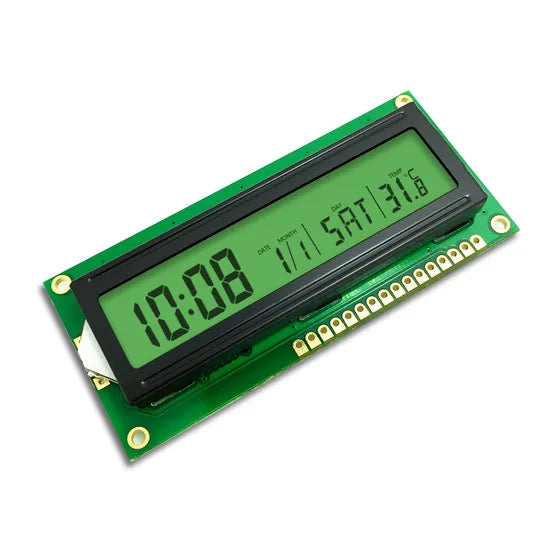
Character (16x2/20x4, HD44780 control, 5x8 dot matrix, LiquidCrystal library); Graphic Dot Matrix (128x64/ST7565, U8g2 library draws free graphics); Custom Segment (7-segment + symbols, COG process...
Size is determined by viewing distance; THX standards suggest 24 inches (61cm diagonal) for 1.5 meters, 27 inches (69cm) for 2 meters, and distances over 2.5 meters for screens exceeding 32 inches ...
Hinterlasse einen Kommentar
Diese Website ist durch hCaptcha geschützt und es gelten die allgemeinen Geschäftsbedingungen und Datenschutzbestimmungen von hCaptcha.