

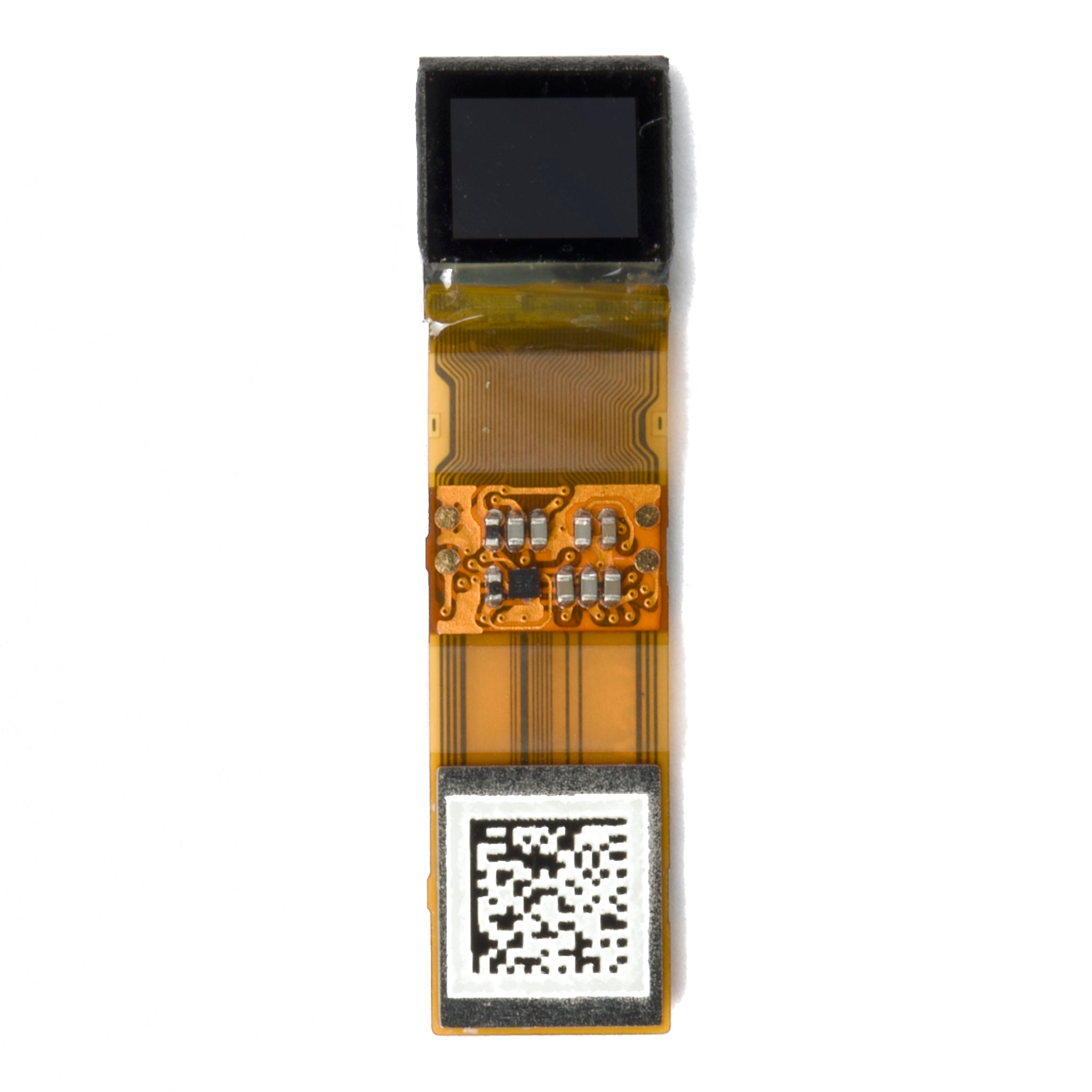
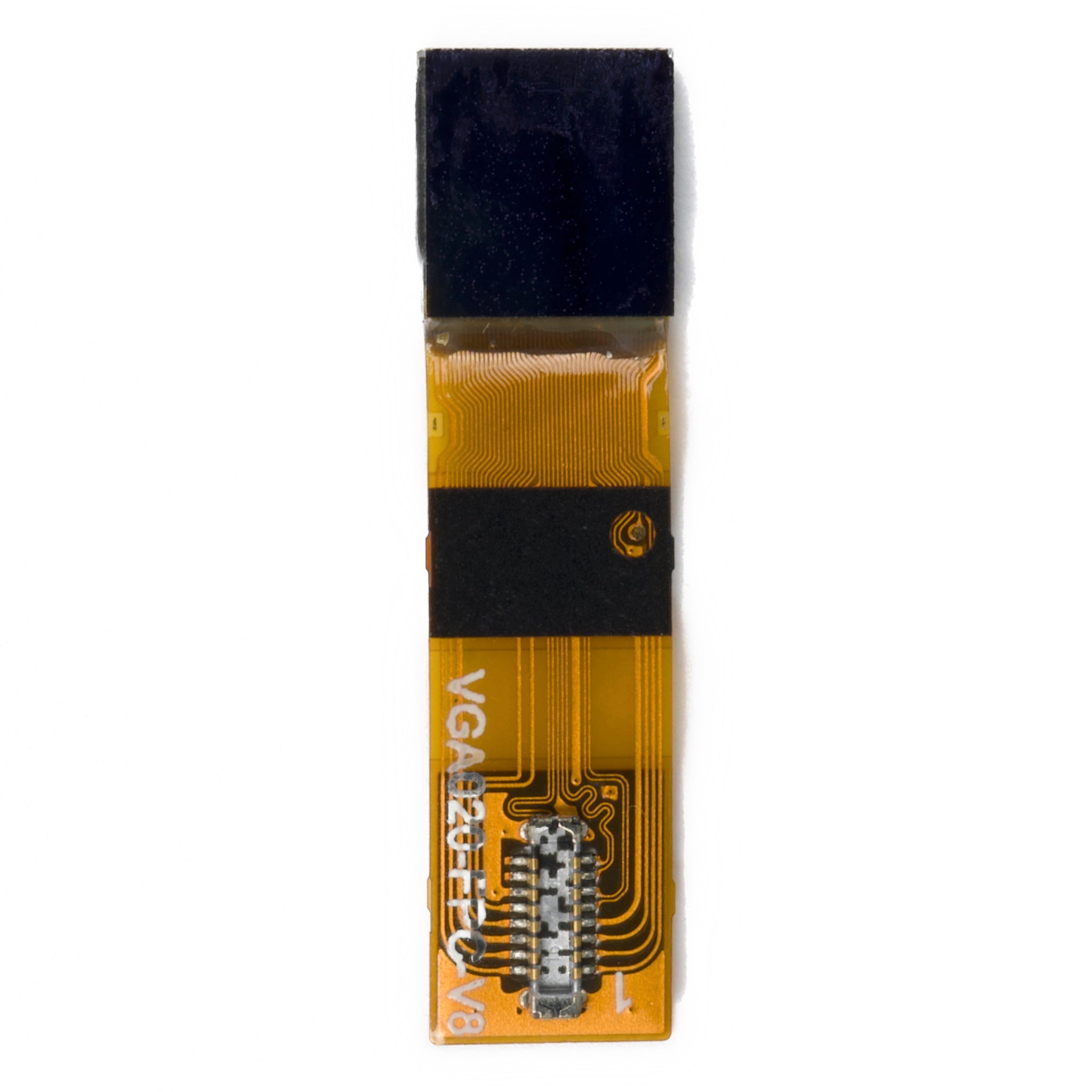
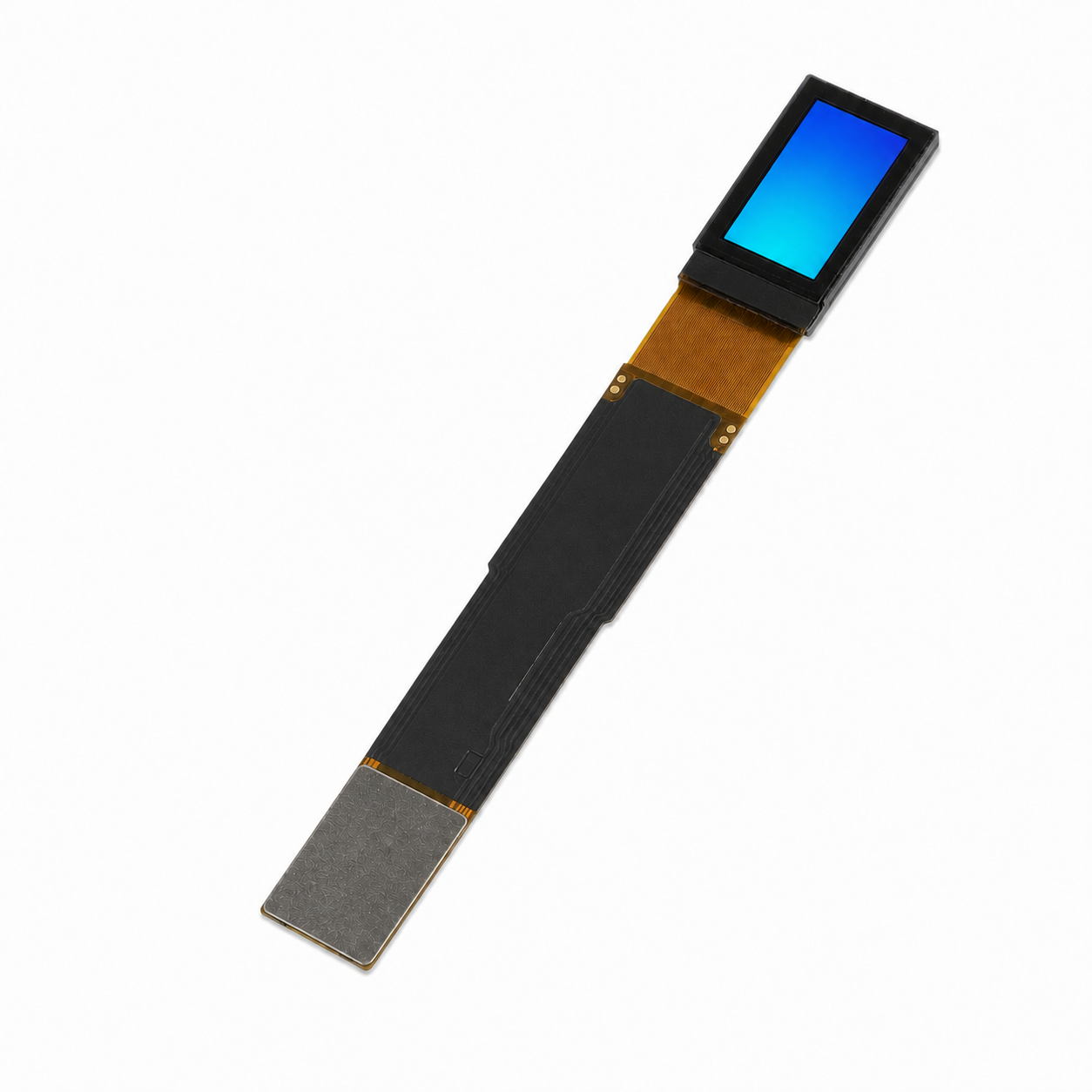
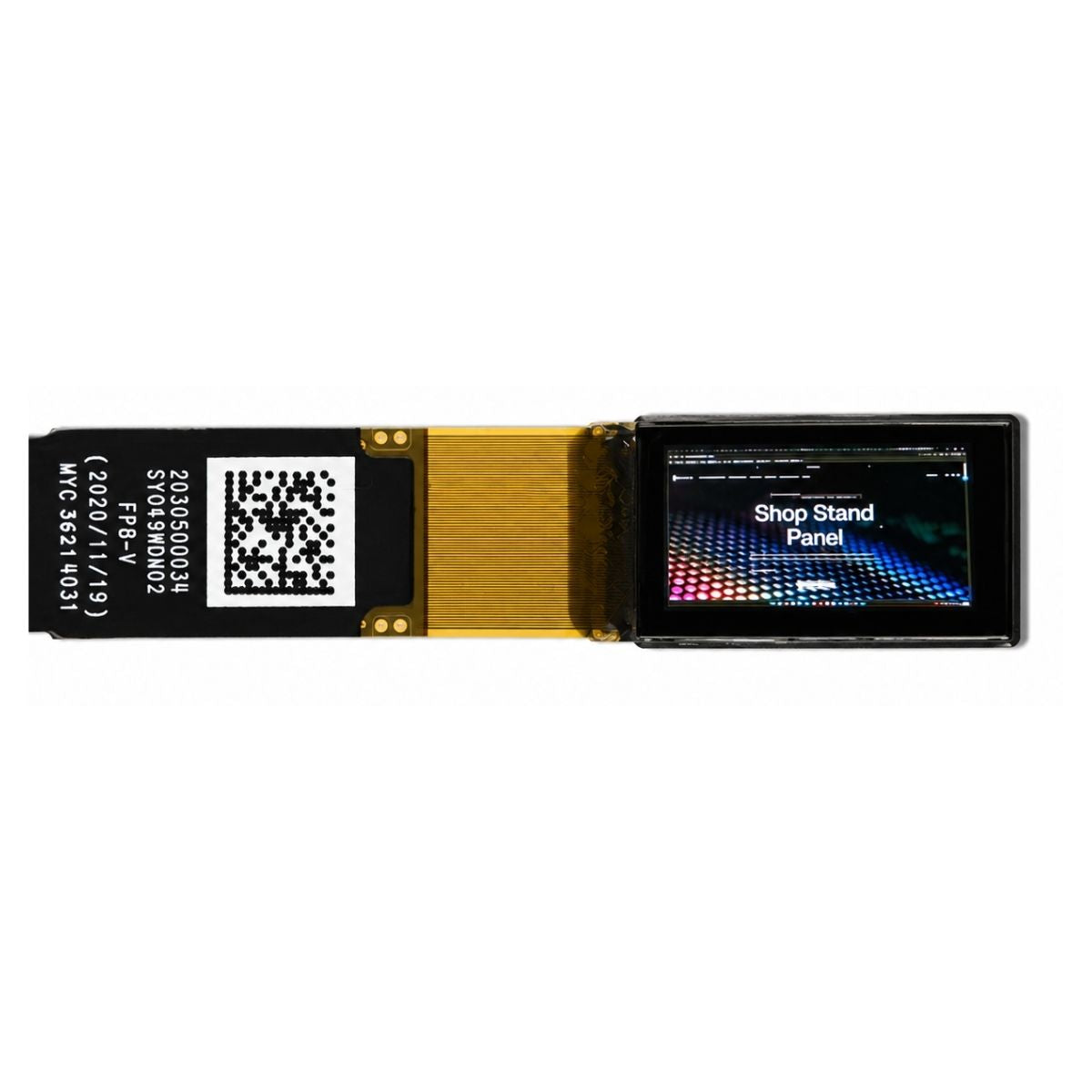


Start with 1.54–2.13-inch screens for compact price labels, 2.9–4.2-inch screens for longer names, member prices and QR codes, and 7.5-inch screens for larger signs. These are starting points, not reading-distance guarantees. Choose black and white for text-led layouts, red or yellow for promotional accents, and full color when product images matter. Approve the smallest screen that keeps your actual label readable.
Choose Size Around Your Label Layout
Build one template with your longest product name, largest price, unit price and required code. A label showing “Coffee $4.99” needs less space than one showing a two-line name, regular price, member price, pack size and QR code. Counting fields alone misses that difference.
Screen proportions matter too. A narrow rectangle may suit a long product name, while a taller display leaves more room for stacked prices. Use the active area to plan the content and the finished device dimensions to check shelf clearance.
| Screen and Model | Resolution | Active Area | Layout to Evaluate |
|---|---|---|---|
| 2.9-inch DMAYE0290X5NA | 128 × 296 pixels | 29.05 × 66.89 mm | A landscape price strip with a product name and unit price |
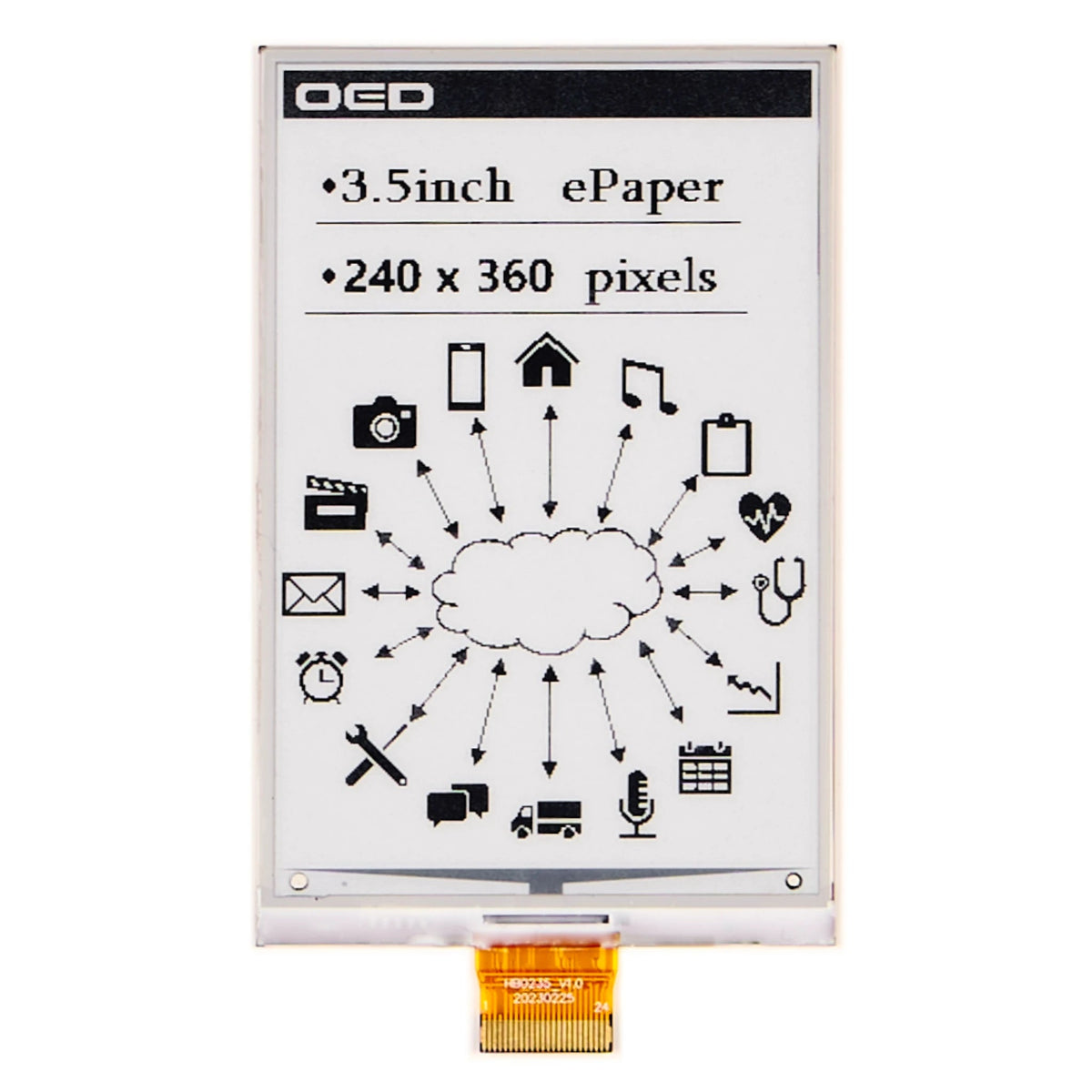
| 3.52-inch DMAYE03501JNA | 240 × 360 pixels | 49.67 × 74.505 mm | Stacked prices, extra product details or a QR code |
| 4.2-inch DMAYE04201LNA | 400 × 300 pixels | 84.80 × 63.60 mm | A larger price block with supporting text |
| 7.5-inch DMAYE0750WVNA | 800 × 480 pixels | 163.20 × 97.92 mm | An endcap sign, headline or multi-section layout |
The dimensions above follow each product’s published orientation. Rotating the layout swaps its width and height; it does not add display area.


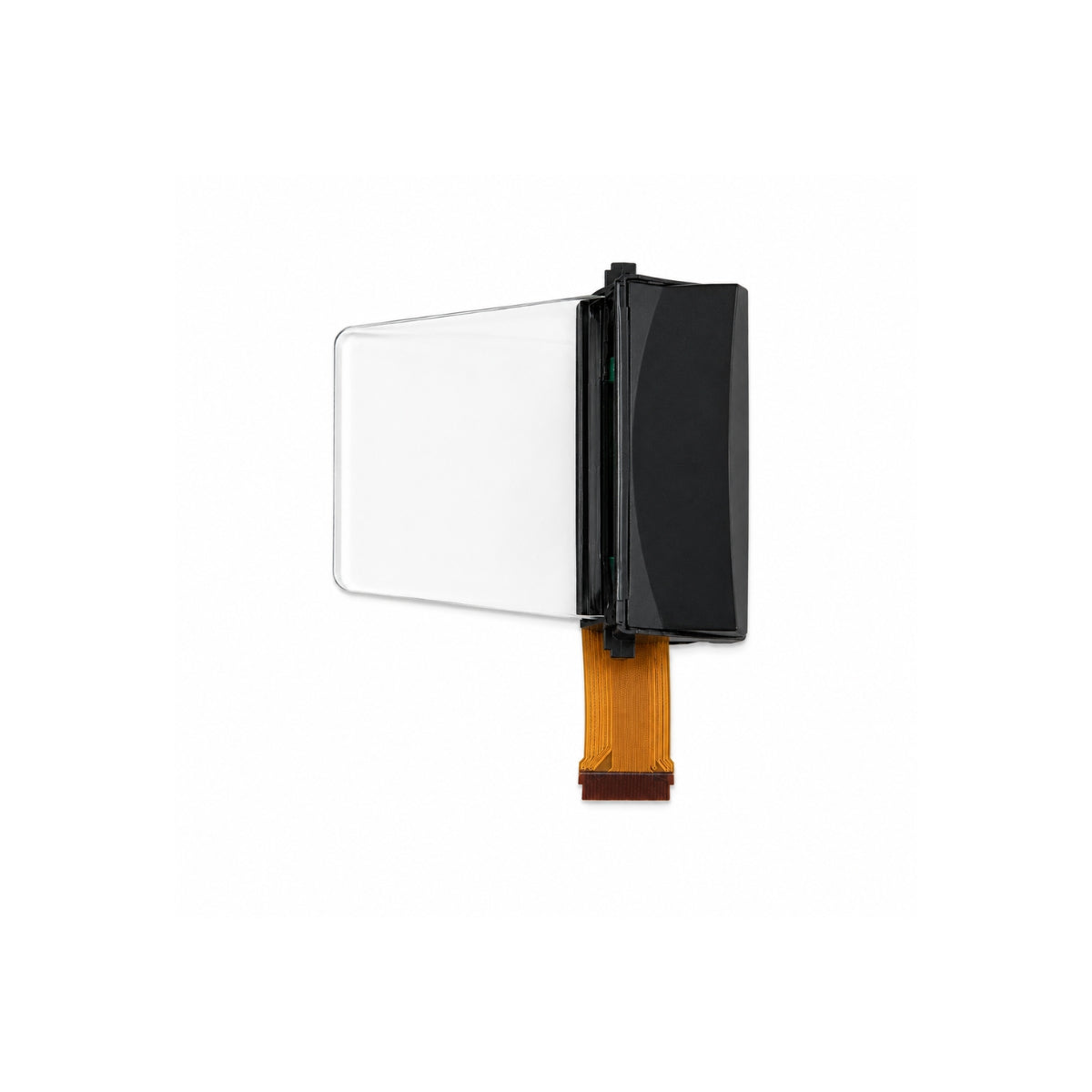
Product photographs are not shown at a common physical scale.
Check Physical Text Size
A bigger screen does not automatically make the same font bigger. On the 4.2-inch module above, a 40-pixel-high text cell measures 8.48 mm. On the 7.5-inch module, it measures 8.16 mm. These values come from the published pixel pitches of 0.212 mm and 0.204 mm; the visible letters may be shorter than the cell.
The larger panel gives you more room, but you still need to enlarge the font. Ask for the rendered price height in millimeters rather than relying on a “28pt” setting, which depends on the template software. Check the price from the aisle and the smaller details at normal shopping distance.
Choose Colors by Content
| Color Option | Useful For | Check on the Sample |
|---|---|---|
| Black and white | Prices, product details and scan codes | Small text, contrast and supported refresh modes |
| Black, white and red | Sale headings, member-price labels and promotional borders | Red visibility and clean removal of the previous promotion |
| Black, white and yellow | Highlight blocks and promotional layouts using yellow | Black text on yellow and separation from the white background |
| Black, white, red and yellow | Layouts that need both accent colors | Legibility when several colored blocks share the screen |
| Full color | Product photographs and richer graphics | Actual image quality, supported palette and refresh behavior |
A four-color panel is not interchangeable with a display intended for photographic content. Send the same product image to each supplier and compare the rendered result, not a phone mockup. There is also no reliable rule that pairs red with 3000K lighting or yellow with 6000K lighting; compare both under your installed lights.
Keep scan codes separate from promotional color. GS1 US identifies black bars on a white background, including the surrounding quiet zones, as the best barcode color combination. It warns against red bars because red-light laser scanners may not detect them.[1]
Compare Refresh Under the Same Conditions
Ask for full-refresh and partial-refresh times separately, with the temperature, panel revision and supported colors stated. A fast black-only update does not prove that a red promotional block will change at the same speed.
Include a red-to-white transition in the sample test. Published research on three-color electrophoretic displays documents residual red images and shows that the driving waveform affects their removal. That supports checking the transition—not assuming every color panel will show the same defect.[2]
For connected labels, measure from sending the price change to seeing the correct, stable image. Network transfer, processing and panel refresh all contribute. Do not estimate the completion time for 1,000 labels by multiplying one panel’s refresh time by 1,000; the system may update multiple labels concurrently.
Verify Cold-Cabinet Compatibility
The published operating range is 0–35°C for DMAYE0290X5NA and 0–50°C for DMAYE04201LNA and DMAYE0750WVNA. These are model-specific limits, not a rating for every e-paper display. A storage rating of −25°C does not mean the screen can update at −25°C.
For a cabinet running at 0–4°C, request refresh results near its lowest actual temperature. For freezing conditions, require an operating specification that covers them. The finished label also needs suitable batteries, an enclosure and protection against condensation; the panel temperature range alone does not establish those.
Run a Small Acceptance Test
Compare two candidate sizes using three layouts: a regular price, a promotion and your most crowded label. Include the longest product name and the real barcode or QR-code data. This suggested six-layout comparison is a buying check, not a published certification test.
- Reading: Mount samples on a middle shelf and the lowest intended shelf. Record whether readers can identify the price, unit and promotion terms at the distances your store requires.
- Scanning: Try each code 10 times with the scanner or phone you will use. Record successful reads and failed attempts; a short sample check is not a long-term reliability claim.
- Updating: Change the price, remove the promotion and inspect the finished screen for remnants of the old content.
- Installation: Check the finished housing, clip, shelf clearance and neighboring products. Screen diagonal alone cannot establish rail compatibility.
Record the model, firmware, template version, temperature, lighting and distance alongside each result. Check angled views and shadows in the installed position. CIE’s display-ergonomics guidance considers display location, lighting and the surrounding environment together, rather than treating the screen in isolation.[3]
Compare the Complete Purchase
A display module is not a complete wireless shelf label. For a finished system, compare label hardware, gateways, software fees, mounting parts, installation and battery service. Ask suppliers to state the battery-life assumptions, including daily updates, temperature and wireless activity.
For a custom device, compare the panel, driver board and development-kit scope. Check the exact interface: on DMAYE04201LNA, SPI carries image data, while the I²C connection serves an external temperature sensor. Matching screen size and resolution is not enough to establish driver compatibility.

Hinterlasse einen Kommentar
Diese Website ist durch hCaptcha geschützt und es gelten die allgemeinen Geschäftsbedingungen und Datenschutzbestimmungen von hCaptcha.