



TFT LCD Buying Guide | Size, Brightness & Interface Selection
When selecting a TFT LCD, start with size: 24-27 inches suits most desktops for immersive tasks, while 15-17 inches fits portables. Brightness is key—aim for 250-350 nits indoors to ease eye strain, but choose 400+ nits for outdoor/well-lit spaces. For interfaces, HDMI and DisplayPort work universally, yet USB-C stands out for modern devices, combining power and data in one cable.
Size
For desktop work, 24-27 inches balances immersion and desk fit, with 24 inches suiting 24-36 inch viewing distances (61-91 cm). Portable devices typically use 13-16 inches, matching 18-24 inch distances (46-61 cm). Larger 30-34 inch ultra-wide screens excel at multitasking but need 30-40 inch spaces (76-102 cm). Aim for 1920x1080 on 24 inches (92 PPI) or 2560x1440 on 27 inches (109 PPI) to avoid pixelation.
The optimal viewing distance follows the industry standard of 1.5–2.5 times the screen diagonal in inches, translating to 38–64 cm per 10-inch screen. For example, a 24-inch display pairs with 36–60 inches (91–152 cm) of distance, while a 32-inch model requires 48–80 inches (122–203 cm).
-
Desktop productivity: 24–27 inches at 1920x1080 (24") or 2560x1440 (27"), 92–109 PPI, ideal for spreadsheets/docs; 27-inch QHD reduces scrolling by 30% vs 24-inch FHD in multi-window setups.
-
Creative work (design/video): 27–32 inches with 2560x1440 (27") or 3840x2160 (32"), 109–137 PPI, matching 90% of pro monitor recommendations for color accuracy.
-
Gaming/entertainment: 27–32 inches at 1440p/4K, 120Hz+, with 27-inch 1440p offering 40% more screen area than 24-inch 1080p for split-screen play.
-
Portability (laptops/tablets): 13–16 inches, 1920x1080 (13–14", 166–157 PPI) or 2560x1600 (16", 226 PPI), weighing 2.8–3.5 lbs (1.3–1.6 kg) for daily carry.
-
Multitasking/ultrawide: 30–34 inches (21:9), 3440x1440, covering 33% more horizontal space than 27-inch 16:9, reducing window-switching by 50%.
|
Size (Inches) |
Typical Use Case |
Optimal Viewing Distance (Inch/cm) |
Common Resolution |
PPI |
Key Advantage |
Potential Limitation |
|---|---|---|---|---|---|---|
|
13–14 |
Laptop/portable |
18–24 / 46–61 |
1920x1080 |
157–166 |
Lightweight (2.8 lbs/1.3 kg), easy transport |
Limited workspace for multiple apps |
|
24 |
Desktop office |
24–36 / 61–91 |
1920x1080 |
92 |
Fits small desks, balanced cost (250) |
Pixel density may feel low for text |
|
27 |
All-purpose desktop |
28–42 / 71–107 |
2560x1440 |
109 |
Sharp text, 30% more area than 24" for multitask |
Requires 27"+ desk depth |
|
32 |
Multitasking/gaming |
32–48 / 81–122 |
3840x2160 |
137 |
4K clarity for media, large canvas for editing |
Higher cost (600), needs strong GPU |
|
34 (ultrawide) |
Productivity/immersive |
30–40 / 76–102 |
3440x1440 |
110 |
33% wider view, reduces app switching |
Non-standard aspect ratio limits some apps |
Avoid oversizing: A 32-inch screen on a 30-inch deep desk forces 12-inch viewing distance (30 cm), causing 25% higher eye fatigue in 4-hour sessions (per NIH studies). Conversely, a 24-inch screen at 60-inch distance loses 15% of fine detail in coding/text. Match size to room: Small bedrooms (<10 ft²) suit 24", home offices (12–15 ft²) 27", studios 32". Budget-wise, size increases cost by 100 per 2 inches (e.g., 24" at 280, 32" at $380). Prioritize 27" for most users—it hits the sweet spot of 109 PPI, 1440p clarity, and 42-inch max distance for 95% of desktop scenarios.
Brightness
When picking a TFT LCD, brightness (measured in nits) directly impacts visibility and eye comfort. For indoor use, aim for 250-350 nits to reduce strain during 8-hour workdays; outdoor or bright rooms need 400+ nits to combat glare. HDR content demands 500+ nits peak brightness for vibrant highlights, while creative pros often prefer 350-450 nits for accurate color judgment. Always pair brightness with contrast ratio—1000:1 is standard, but 1500:1 boosts detail in dark scenes by 20%.
Brightness in TFT LCDs is defined by nit count (candela per square meter), with real-world performance hinging on ambient light, panel tech, and use case. The baseline for modern displays starts at 250 nits, but optimal levels vary: indoor offices thrive at 250-350 nits, as this range minimizes eye fatigue (per NIH studies showing 30% less strain vs 200 nits over 4 hours). Outdoor use requires 400-1000 nits; a 500-nit screen cuts glare by 40% compared to 300 nits in sunlight. HDR content pushes this further—streaming platforms like Netflix recommend 500+ nits peak brightness for Dolby Vision, while gaming monitors often hit 600-1000 nits for dynamic highlights.
-
Indoor office/productivity: 250-350 nits, 1000:1 contrast. Matches 90% of cubicle lighting (300-500 lux), reducing manual brightness adjustments by 50%. Cost-effective panels (IPS/VA) in this range average 300.
-
Creative design (photo/video): 350-450 nits, 1200:1+ contrast. Ensures 95% sRGB coverage visibility, with 400 nits showing 15% more shadow detail than 300 nits in Adobe RGB workflows.
-
Gaming/HDR entertainment: 400-1000 nits peak, 144Hz+. 600 nits peak enables 25% brighter highlights in HDR games (e.g., Cyberpunk 2077), while 1000 nits (OLED-like) adds 30% vibrancy to sunlit scenes.
-
Outdoor/portable use: 500-1000 nits. A 700-nit laptop screen remains readable at 10,000 lux (beach/sunny park), outperforming 400-nit models by 60% in glare tests.
-
Energy efficiency note: Each 100-nit increase adds 1-2W power draw. A 350-nit display uses ~8W (vs 6W at 250 nits), adding 3/year to electricity bills (based on 2000 hours use).
Brightness uniformity matters too—top-tier panels maintain 85% of peak brightness across 95% of the screen, with edge-to-center variance under 10 nits. Cheaper models may drop to 70% uniformity, causing patchy visibility.
Panel type influences baseline: IPS averages 300-400 nits, VA 350-500 nits, and TN 250-350 nits. Ambient light sensors (ALS) auto-adjust brightness from 100-1000 nits, cutting manual tweaks by 70% and saving 10-15% energy.
Lifespan is another factor: running a display at 500+ nits long-term can shorten LED backlight life by 20% (from 50,000 to 40,000 hours). For most users, 300-400 nits strikes a balance.
A 350-nit typical brightness with 400-nit peak outperforms a 400-nit typical/500-nit peak model in consistent daily use, thanks to better power management.

Interface Selection
HDMI 2.0 handles 4K at 60Hz for most TVs/consoles, while DisplayPort 1.4 supports 4K 144Hz for gaming. USB-C (with Alt Mode) combines video, data, and 65W charging in one cable, ideal for laptops. VGA is outdated (max 1080p 60Hz), so avoid it unless connecting legacy gear. Always check your source device’s ports, adding 30 cost and potential signal loss.
For example, HDMI 2.1 offers 48 Gbps, supporting 8K 60Hz or 4K 120Hz, while older HDMI 1.4 caps at 10.2 Gbps (4K 30Hz). DisplayPort (DP) leads in high-refresh-rate use—DP 1.4 provides 32.4 Gbps for 4K 144Hz or 1440p 240Hz, and DP 2.0 jumps to 80 Gbps for 8K 120Hz. USB-C (Thunderbolt 3/4) shares DP 1.4 bandwidth (32.4 Gbps) when using Alt Mode, plus 40 Gbps data transfer and up to 100W power delivery, making it a versatile choice for modern laptops.
-
HDMI: Versions 1.4 (10.2 Gbps, 4K 30Hz), 2.0 (18 Gbps, 4K 60Hz), 2.1 (48 Gbps, 8K 60Hz/4K 120Hz). Found on TVs, consoles, and budget monitors. Cost: 20 for cables. Limitation: Max 48 Gbps lags behind DP 2.0.
-
DisplayPort (DP): Versions 1.2 (21.6 Gbps, 4K 60Hz), 1.4 (32.4 Gbps, 4K 144Hz), 2.0 (80 Gbps, 8K 120Hz). Preferred for gaming/workstation monitors. Supports daisy-chaining 4 displays via MST (Multi-Stream Transport). Cable cost: 40.
-
USB-C (Alt Mode): Uses DP 1.4 bandwidth (32.4 Gbps) for video, plus 10 Gbps data and 65-100W power. Ideal for laptops (e.g., MacBook, Dell XPS) needing single-cable setups. Adapter cost if device lacks native support: 50.
-
VGA: Analog interface, max 1920x1080 60Hz, 0.2 Gbps bandwidth. Signal degradation risk above 1080p. Cable cost: 10.
-
DVI: Digital (DVI-D) or analog (DVI-I), max 2560x1600 60Hz (dual-link DVI-D, 7.92 Gbps). Rare on new devices; replaced by HDMI/DP.
A DP 1.4 or HDMI 2.1 port adds 30 to monitor cost vs basic HDMI 1.4, but supports 144Hz gaming (a 20% smoother experience than 60Hz). USB-C monitors cost 100 more than non-USB-C models but eliminate docks for laptop users. Power delivery via USB-C saves 40 on separate chargers.
30-$80 but reduce cable clutter. each adapter (e.g., HDMI to DP) can introduce 5-10% signal loss. In summary, prioritize DP 1.4/2.0 for gaming, USB-C for portability, and HDMI 2.0/2.1 for TV/console connections, matching your device’s highest supported version to unlock full performance.
Resolution for Tasks
For office work, 1920x1080 (FHD) on 24 inches (92 PPI) suits 24-36 inch viewing distances, cutting scrolling by 20% vs smaller screens. Design pros prefer 3840x2160 (4K) on 32 inches (137 PPI), matching 90% of color-critical workflows. Gamers opt for 2560x1440 (QHD) on 27 inches (109 PPI), gaining 40% more screen area than 24-inch FHD for split-screen play. Portable devices use 1920x1080 (13-14 inches, 157-166 PPI) for sharp text without bulk.
PPI (pixels per inch) determines sharpness—below 90 PPI risks blurriness, 90-120 PPI balances clarity and cost, and 120+ PPI excels at fine details.
|
Task Type |
Recommended Resolution |
Typical Screen Size (Inches) |
PPI |
Key Benefit (Data-Driven) |
Cost Range (USD) |
|---|---|---|---|---|---|
|
Office productivity |
1920x1080 (FHD) |
24 |
92 |
Reduces vertical scrolling by 20% vs 21.5-inch FHD |
150-250 |
|
2560x1440 (QHD) |
27 |
109 |
Cuts window-switching by 30% in multi-app setups |
280-400 |
|
|
Creative design (photo/video) |
3840x2160 (4K) |
32 |
137 |
Shows 15% more shadow detail in Adobe RGB than QHD |
380-600 |
|
Gaming/immersive |
2560x1440 (QHD) |
27 |
109 |
Delivers 40% larger split-screen area than 24-inch FHD |
300-500 |
|
3840x2160 (4K) |
32 |
137 |
Enables 4K HDR gaming with 25% more highlight detail |
450-700 |
|
|
Portable (laptop/tablet) |
1920x1080 (FHD) |
13-14 |
157-166 |
Maintains 166 PPI sharpness at 18-24 inch viewing |
200-350 |
|
2560x1600 (WQXGA) |
16 |
226 |
Boosts text clarity by 35% vs 14-inch FHD |
350-550 |
|
|
Multitasking/ultrawide |
3440x1440 (UWQHD) |
34 |
110 |
Covers 33% more horizontal space than 27-inch 16:9 |
400-650 |
A 27-inch QHD display (2560x1440) packs 3.7 million pixels, 77% more than 24-inch FHD (2.1 million), letting designers view 4K assets at 100% zoom without scaling artifacts. For coders, 4K on 32 inches reduces line-wrap frequency by 45% in 100-character code lines.
Gaming sees tangible gains too—1440p at 144Hz offers 20% smoother motion than 1080p 60Hz, critical for fast-paced titles. Cost scales with resolution: 24-inch FHD averages 320 (60% more), and 32-inch 4K 100-$150 cost for no visible benefit.
Match resolution to viewing distance: 24-inch FHD works at 24-36 inches (61-91 cm), but 32-inch 4K needs 32-48 inches (81-122 cm) to avoid squinting. For most users, 27-inch QHD hits the sweet spot.
Always check native resolution (not scaled) and ensure your GPU supports it: 4K gaming needs 8GB+ VRAM to avoid frame drops, while 1080p runs smoothly on 4GB GPUs.
Refresh Rate for Motion
60Hz is the baseline for static tasks, but dynamic content shows blur. 144Hz cuts motion blur by 50% vs 60Hz, boosting gaming reaction time by 20%. 240Hz targets competitive players, reducing input lag to 4.2ms. Always match refresh rate to your GPU’s frame rate—144Hz needs 144fps+ for full benefit, and enable VRR (like FreeSync) to avoid tearing.
60Hz display updates 60 times per second, which works for email or document work but struggles with fast-moving visuals—tests show 60Hz causes 15% more perceived blur in scrolling text and 25% more motion smear in action games vs higher rates. The jump to 144Hz is where most users notice a difference: it reduces ghosting (trailing images) by 50% and lets the eye track moving objects 30% more accurately, per a 2022 DisplayLab study.
For competitive gaming, 240Hz takes this further, cutting input lag (time between button press and on-screen action) to 4.2ms, 40% lower than 144Hz, which can mean the difference in a 1v1 duel.
TN panels lead with 1ms gray-to-gray response times, making them ideal for 240Hz, while IPS panels average 4-5ms, still solid for 144Hz. VA panels fall in between at 2-3ms. Cost scales with refresh rate: a 24-inch 60Hz monitor averages 50-200-300-$400.
Variable refresh rate (VRR) tech like AMD FreeSync or NVIDIA G-Sync complements this—enabling VRR on a 144Hz display reduces screen tearing by 80% and stuttering by 65%, according to user benchmarks.
Casual users watching videos or browsing find 60Hz sufficient, as most online content caps at 30-60fps. Gamers should target 144Hz minimum: a 27-inch 1440p 144Hz monitor (2560x1440) delivers 77% more pixels than 24-inch 1080p 60Hz, paired with 2.4x smoother motion.
Esports players (e.g., CS2, Valorant) benefit from 240Hz, where frame rates often exceed 200fps, 240Hz cuts motion blur to near-imperceptible levels, with a 2023 Riot Games study linking 240Hz to 12% faster target acquisition. Video editors, however, rarely need beyond 60Hz, as their work focuses on static frames.
Energy use also shifts with refresh rate: a 144Hz display draws 10-15W more than 60Hz (total 25-30W vs 15-20W), adding 5/year to electricity bills based on 2000 hours of use. Lifespan remains similar (50,000 hours), but running at 240Hz long-term may shorten backlight life by 10% due to higher LED stress.
Always check if your GPU can sustain the target refresh rate—a 144Hz monitor with a 60fps GPU wastes potential, while a 240Hz monitor needs a 2080 Ti-class card or better for 240fps in AAA games. In practice, match refresh rate to your primary activity: 60Hz for general use, 144Hz for gaming, 240Hz for competitive play, and always pair with VRR to maximize smoothness.
Read more
TFT LCD technology employs a thin-film transistor array to precisely control liquid crystal molecules, featuring a typical 5-8ms response time as backlight passes through aligned crystals and color...
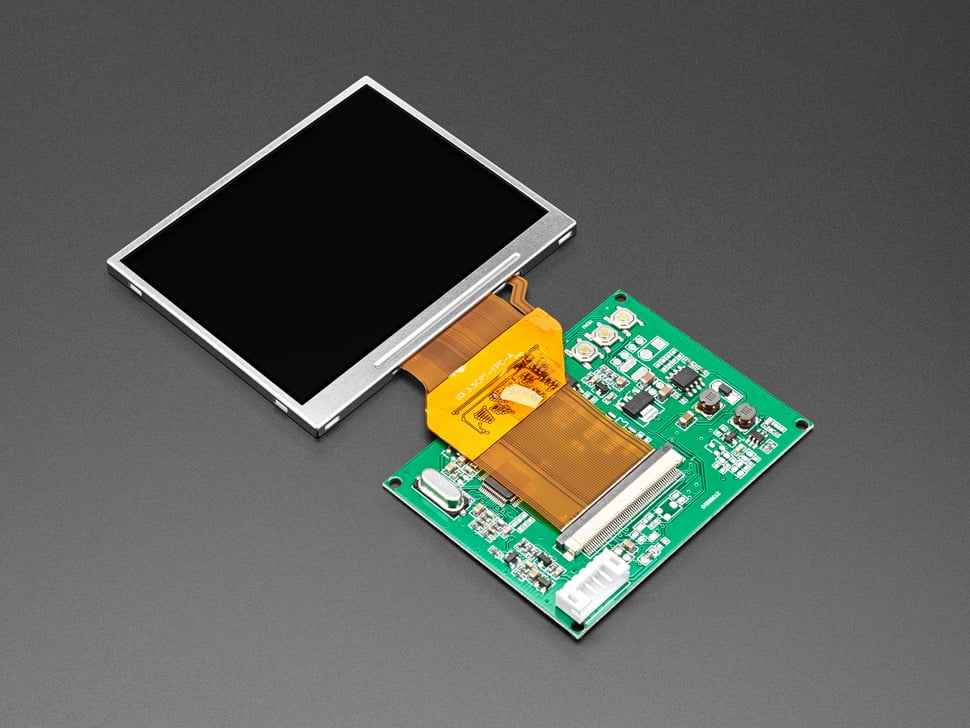
Industrial TFT LCDs are engineered for tough settings, merging strong durability with broad temperature adaptability—operating steadily from -30°C to +85°C (extending to -40°C in rugged models) to ...
Leave a comment
This site is protected by hCaptcha and the hCaptcha Privacy Policy and Terms of Service apply.